Knowledge

Detailed Guide on Modifying IP Addresses for Solidot EtherNet/IP Protocol Series Products
Solidot products supporting the EtherNet/IP protocol include Slice I/O, Integrated I/O, and Bus Valve Islands. In practical on-site applications, users often need to modify the IP address. This article details three modification methods.
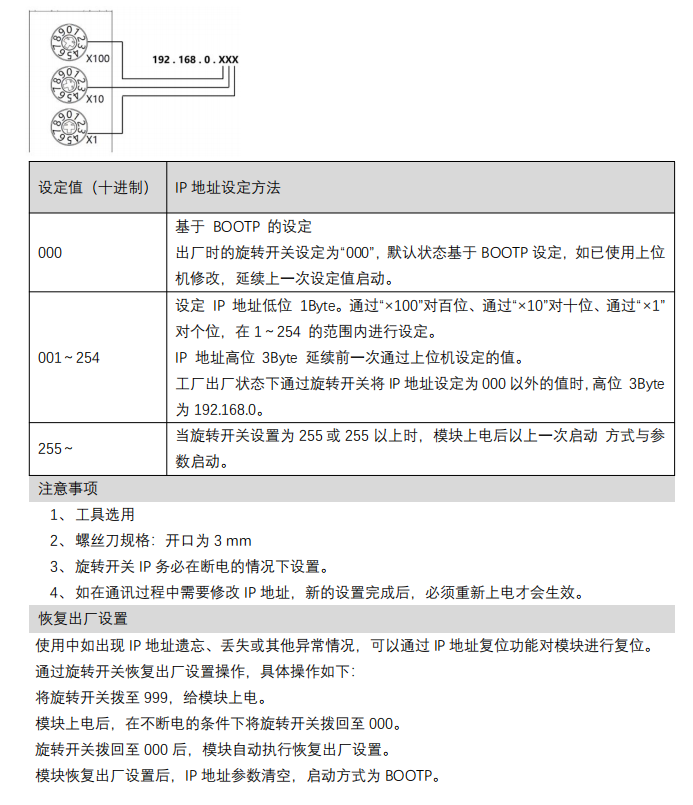
Method 1: Modification via Rotary Switch Dialing
Physically set the dial code using the rotary switch on the product. Please refer to the image below for specific operations:
[Image placeholder: Rotary Switch Dialing Illustration]
Method 2: Modification via the EtherNet/IP IP Configuration Tool
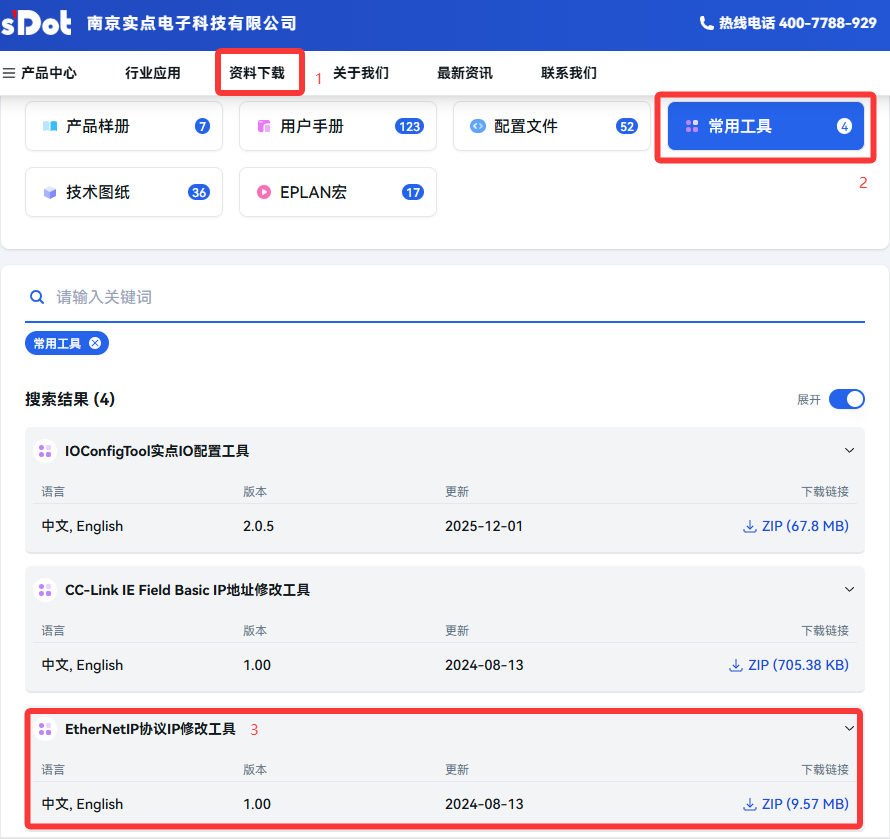
1.Download and install the "EtherNet/IP IP Configuration Tool" from Solidot's official website.
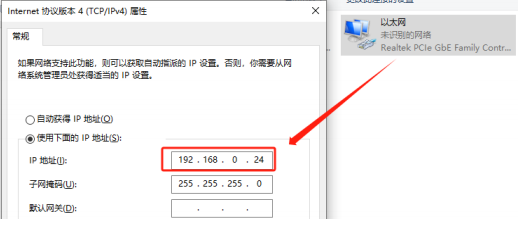
2.Connect the computer directly to the product using an Ethernet cable. Set the computer's IP address to the "0" subnet (e.g., 192.168.0.x). The product's default IP is 192.168.0.120.
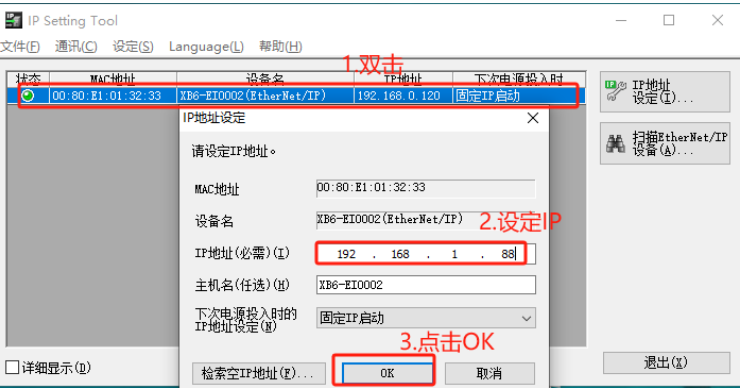
3.After setting the computer's IP, open the "IP Setting Tool".
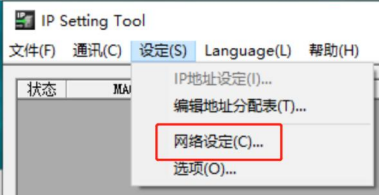
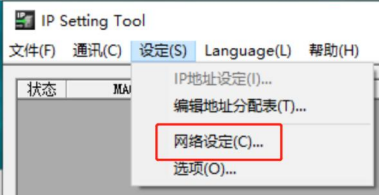
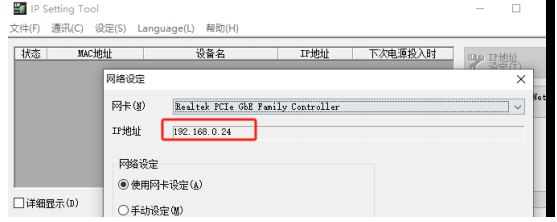
Select the corresponding network adapter.
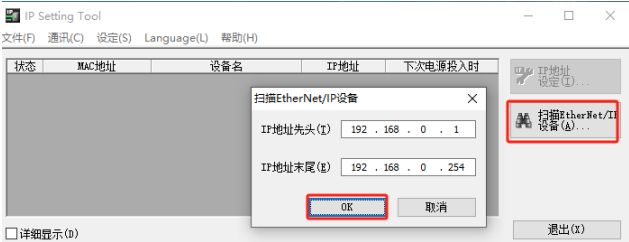
Scan for devices.
The default IP is 192.168.0.120, and the default rotary switch setting is 000. These can be kept or modified as needed.
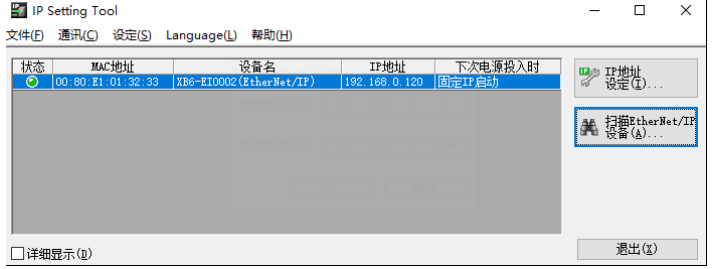
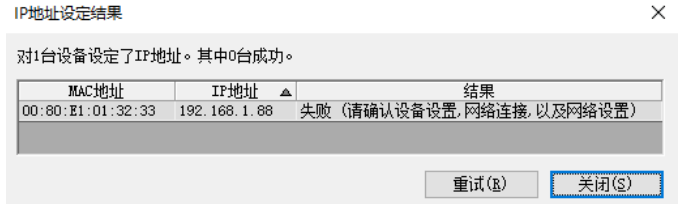
If modification fails, it might be because the software does not support cross-subnet scanning. Change the computer's subnet to the "1" subnet (e.g., 192.168.1.x) and scan again to verify if the change was successful.

Method 3: Modification via the IO Config Tool (Solidot IO Configuration Tool)
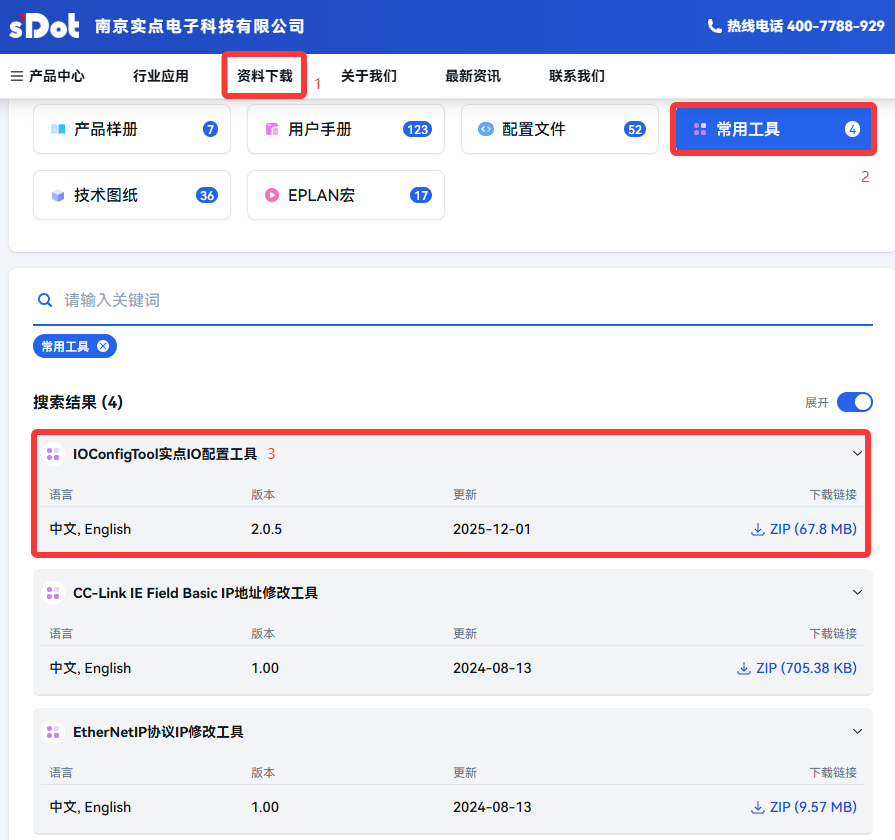
1.Download and install the "IO Config Tool (Solidot IO Configuration Tool)" from Solidot's official website. Note: This tool is only suitable for modifying the IP of XB6S series modules.
2.The computer IP configuration for the "0" subnet is the same as Step 2 in Method 2.
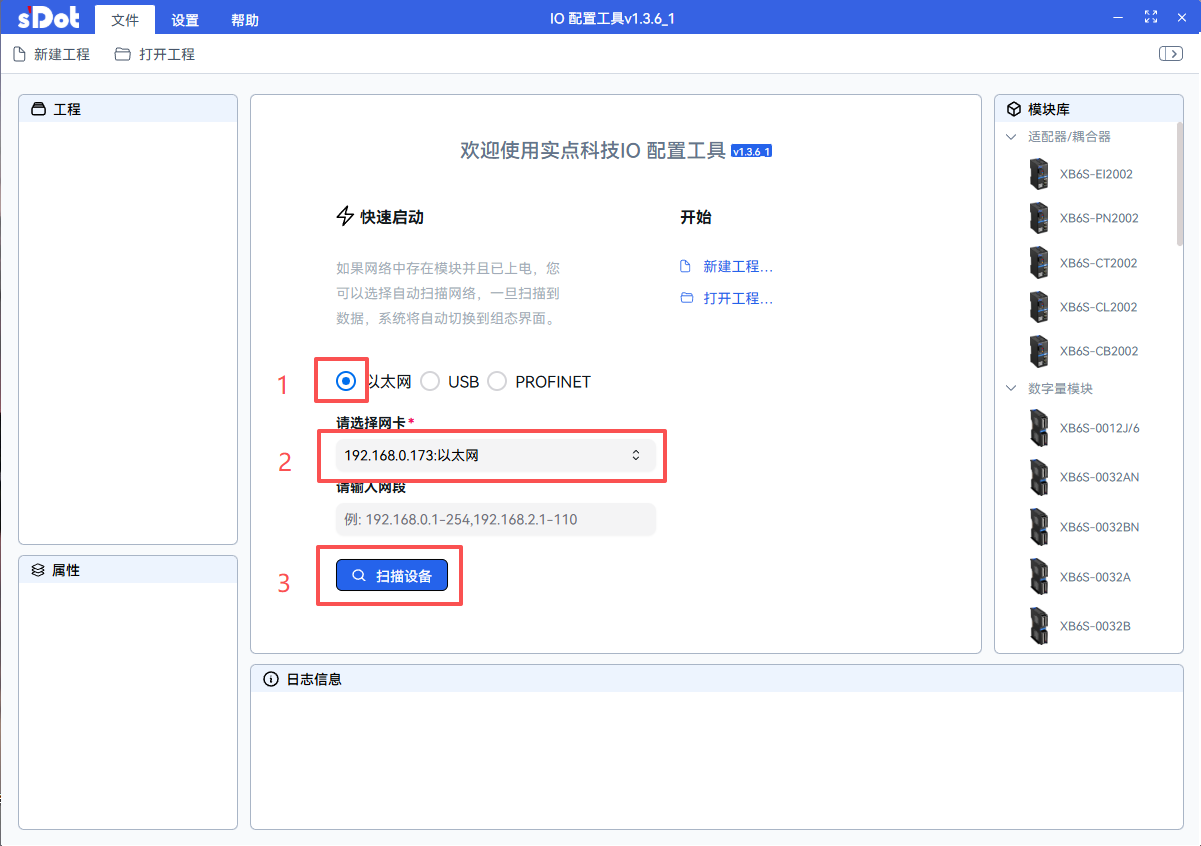
3.After setting the computer's IP, open the "IO Config Tool".

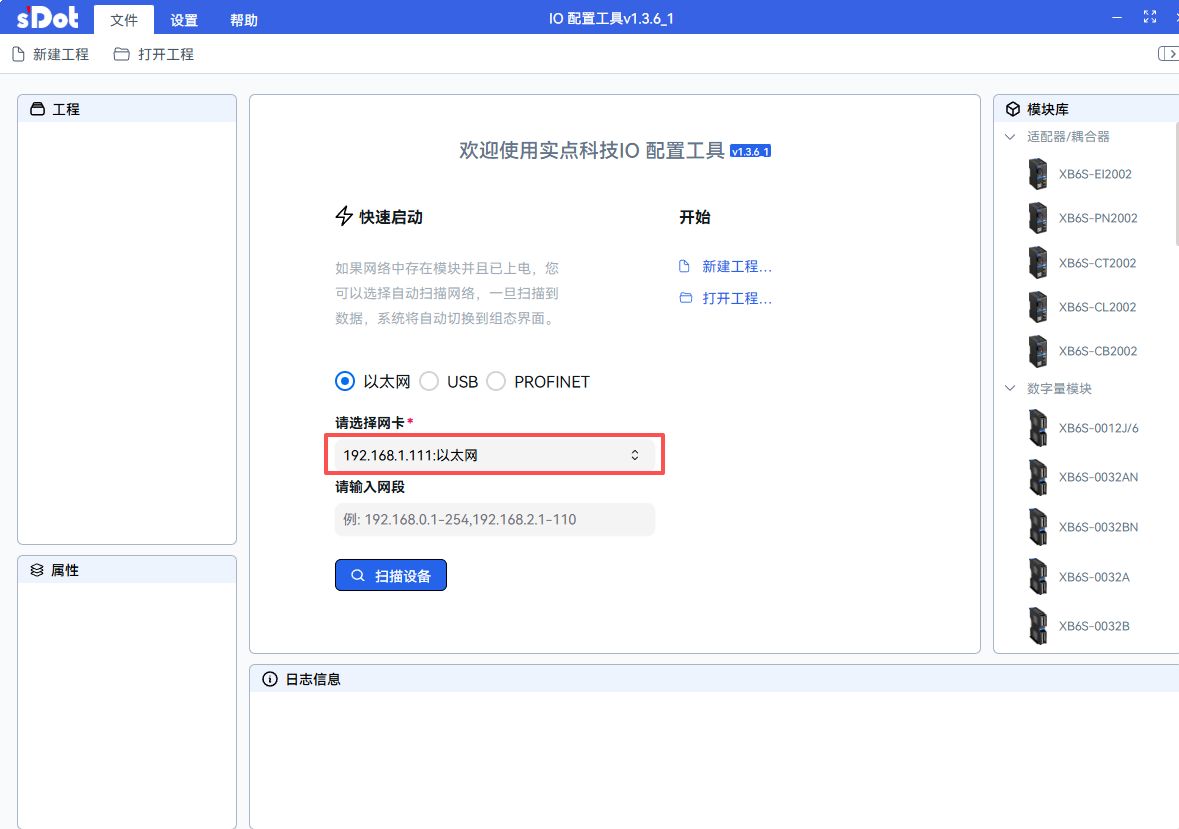
Select the network adapter corresponding to the module and click "Scan Devices".
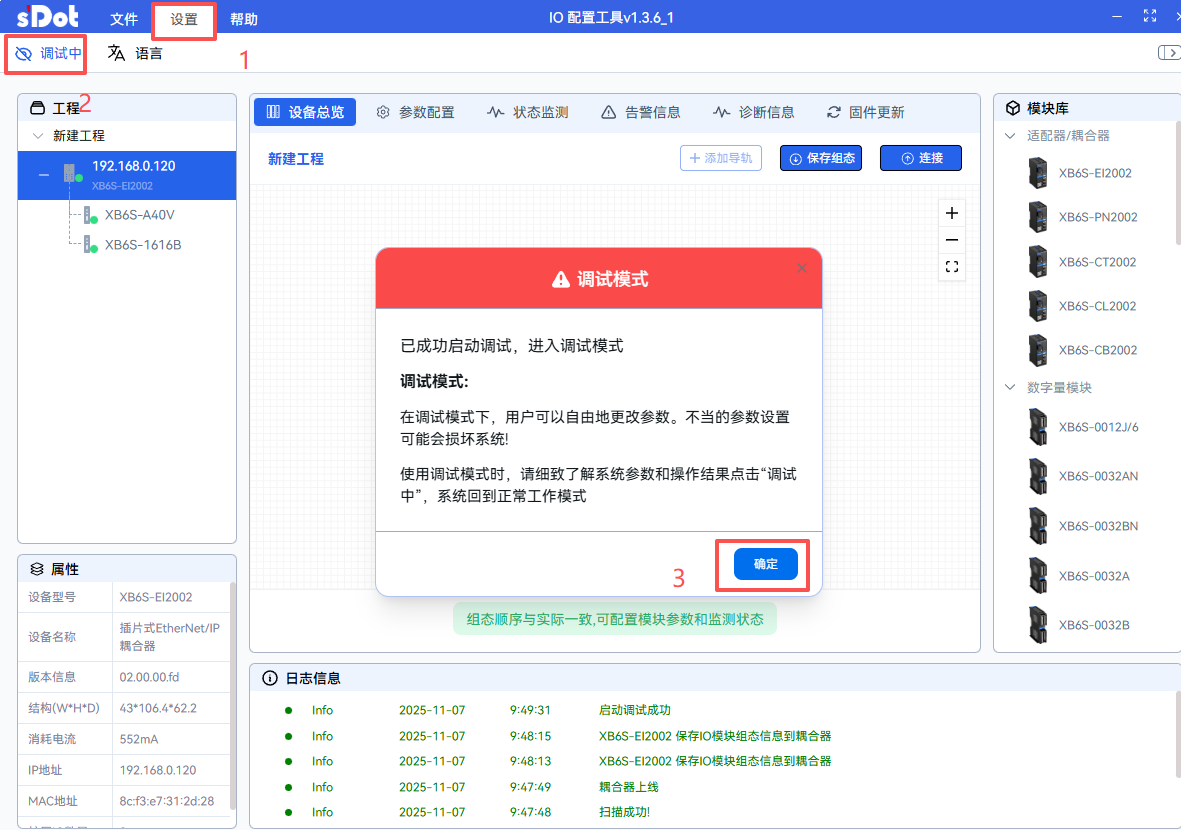
Once both the coupler and sub-modules are successfully scanned, click "Settings" to enter the module debugging interface.
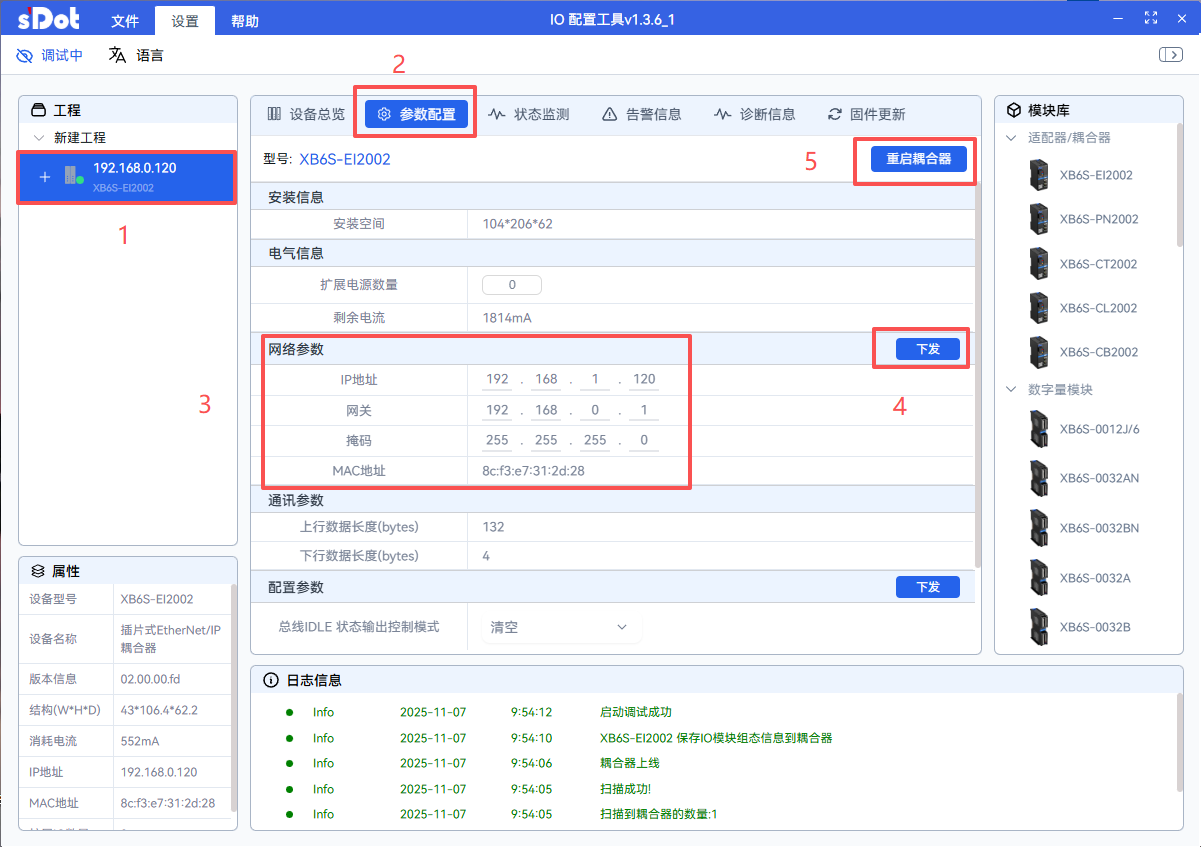
Click on the coupler, select "Parameter Configuration", modify the network parameters, then click "Download". Finally, click "Restart Coupler".
After the restart is complete, close the software and reopen it. Now, you must change the computer's IP subnet to match the new IP of the module. Select the corresponding network adapter and click "Scan Devices" again.
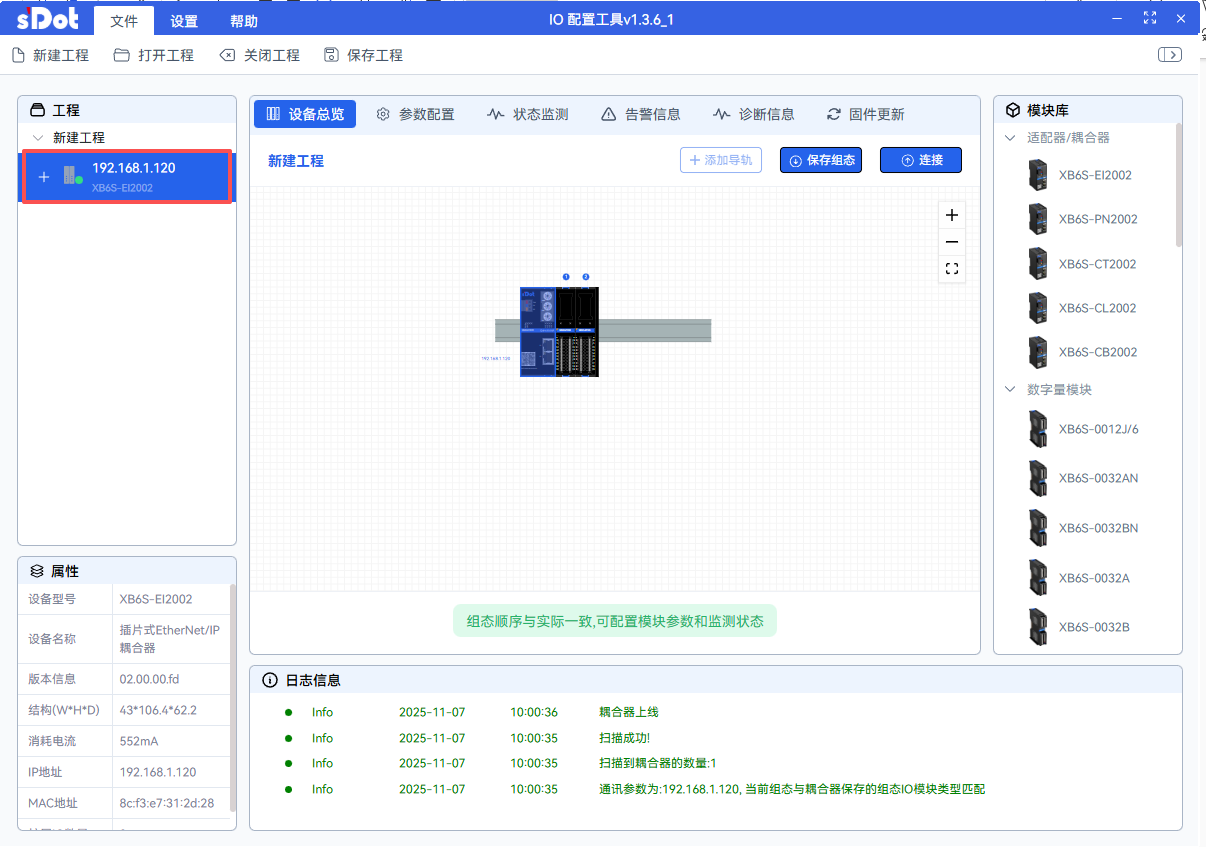
After a successful scan, you can see that the coupler's IP has been updated.
This concludes the detailed guide on how to modify IP addresses for Solidot's EtherNet/IP protocol series products. Thank you for reading.