Knowledge

Quick overview
1. Demo product
2. Configuration Platform
CODESYS (also applies to some other PLC platforms packaged on the CODESYS platform)
3. Core operations
Import XML into device repository → Add branch module under EtherCAT_master → Right-click the port on X2/X3 to add a device → Add the X4 port device below the branch module
4. Key Prerequisite
The XML file of the Solidot branch module must be imported into the device repository beforehand
5. Important Notes
The X4 port has no separate port node. Devices connected to it must be added by right-clicking EtherCAT_master and arranged below the branch module in the actual configuration
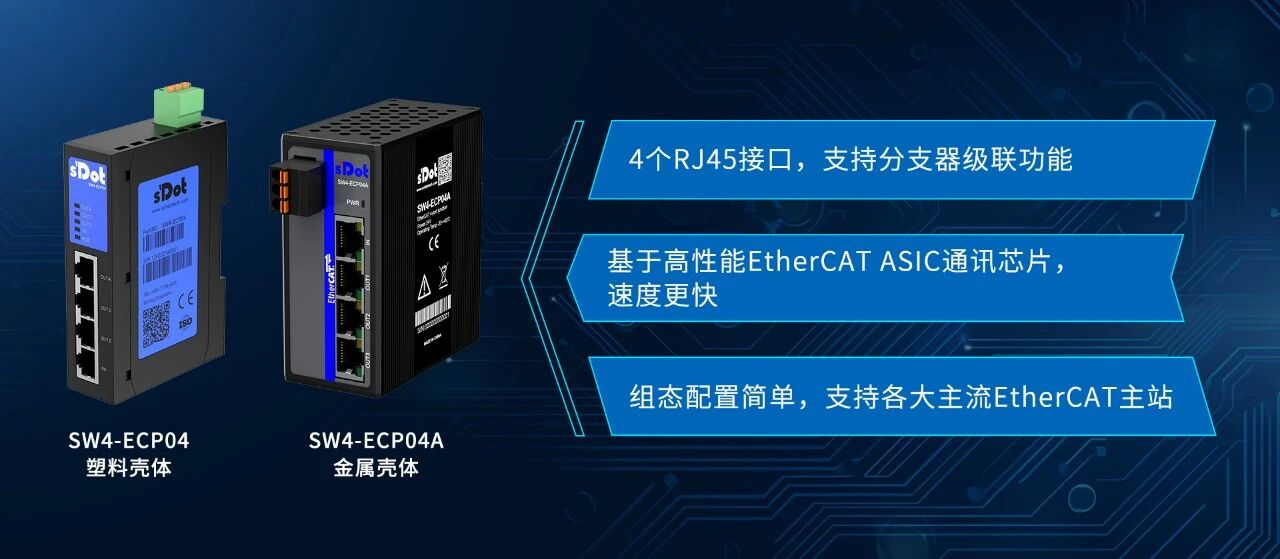
The SW4-ECP04A is a Solidot four-port (1 in, 3 out) EtherCAT branch module with a metal housing. After importing the configuration file of the four-port branch module on platforms such as CODESYS and completing the configuration, some customers are unclear about how the 1-in, 3-out configuration maps to the program — that is, devices can be added directly by right-clicking a port for X2 and X3, but where should devices connected to the X4 port be configured?
On CODESYS and some other PLC platforms packaged on this platform, the solution to the problem that the X4 port has no separate port node is summarized as follows: after adding the branch module, right-click EtherCAT_master to add the required devices and arrange them below the branch module in the actual configuration — this is the configuration for the X4 port. This article uses the SW4-ECP04A as an example to describe, in sequence, the XML import, adding the branch module, and the complete configuration process for the X2, X3 and X4 ports.
Importing the XML into the Project
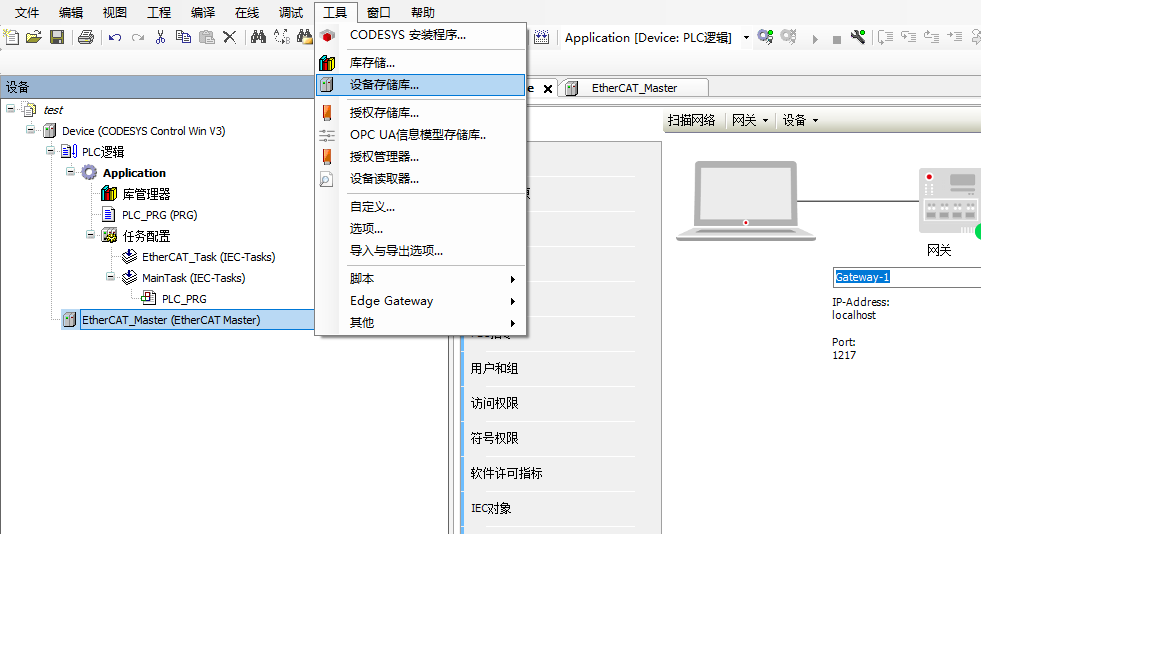
1. Open the device repository
In the CODESYS project, select "Tools" → "Device Repository" and open it.
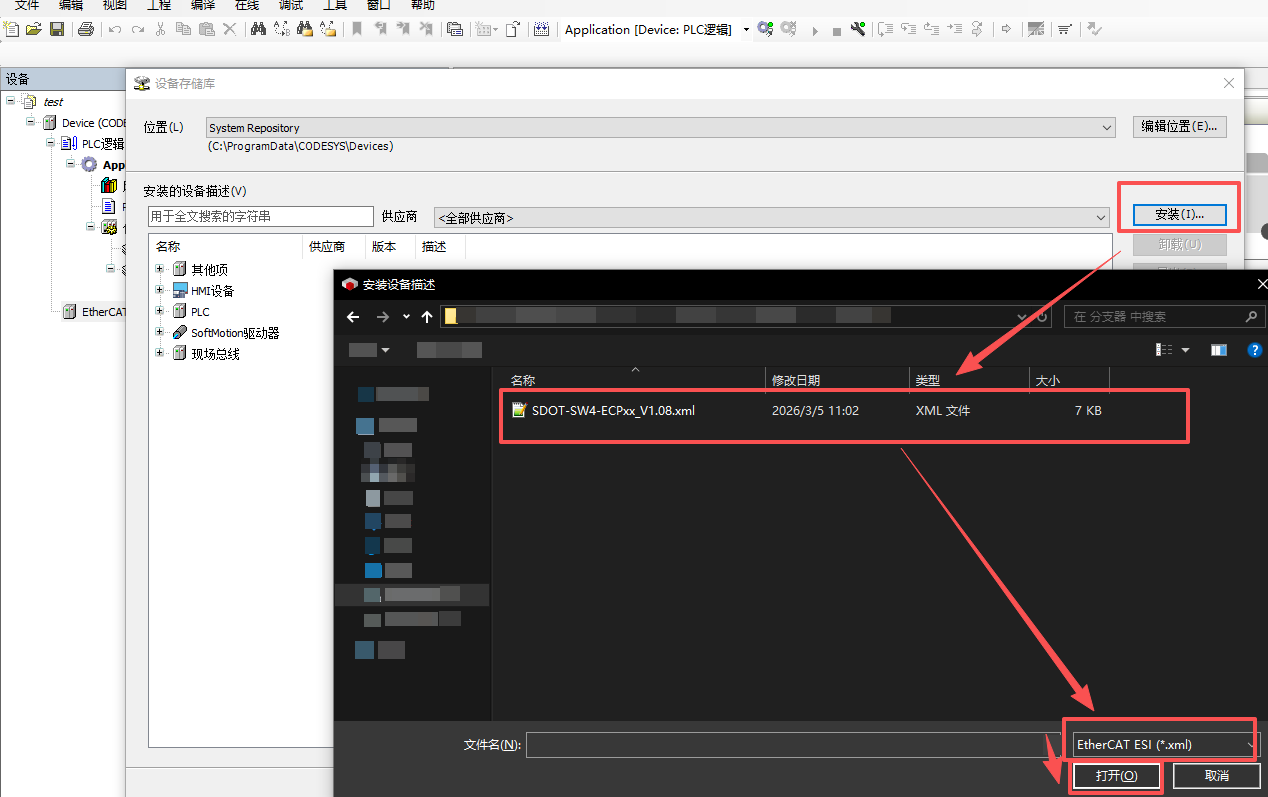
2. Import the branch module XML file
In the window that opens, select the XML of the Solidot branch module and import it.
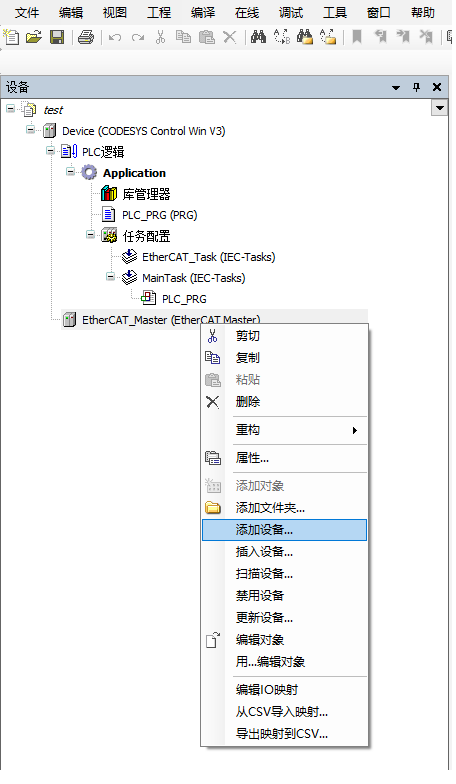
Adding the Branch module
Right-click EtherCAT_master to add a branch module, using the SW4-ECP04A as an example.
The configuration is now displayed as follows after the branch module is added:
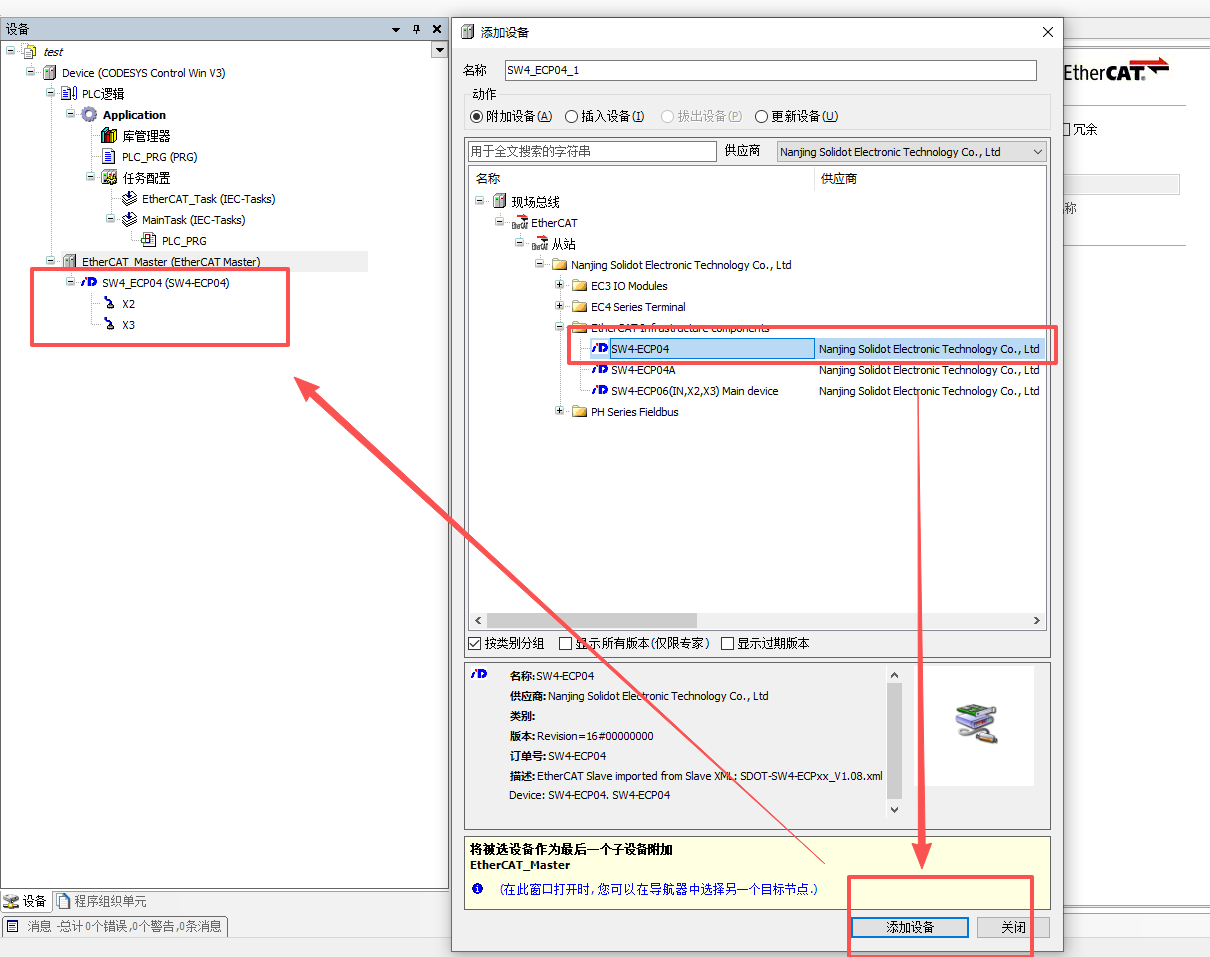
Configuration of X2 and X3 ports
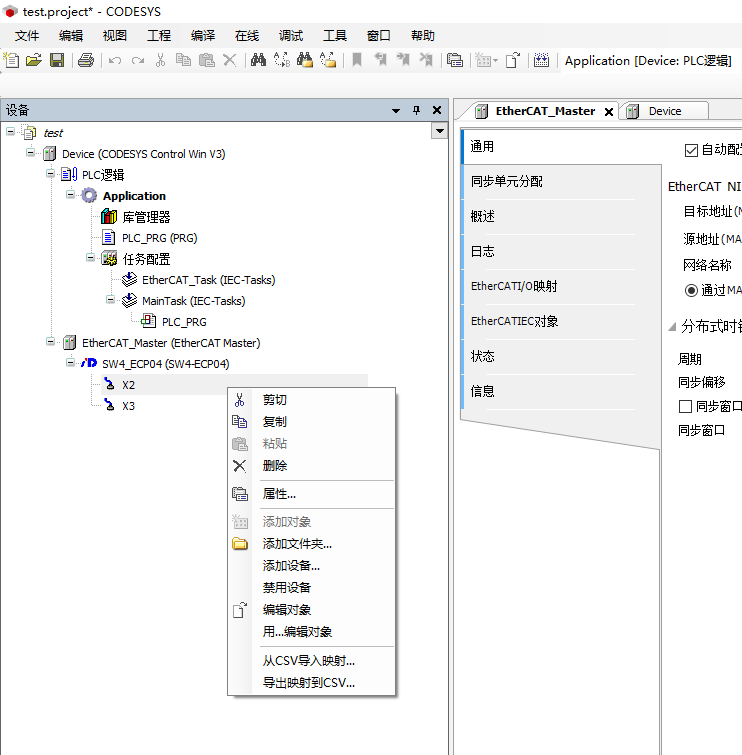
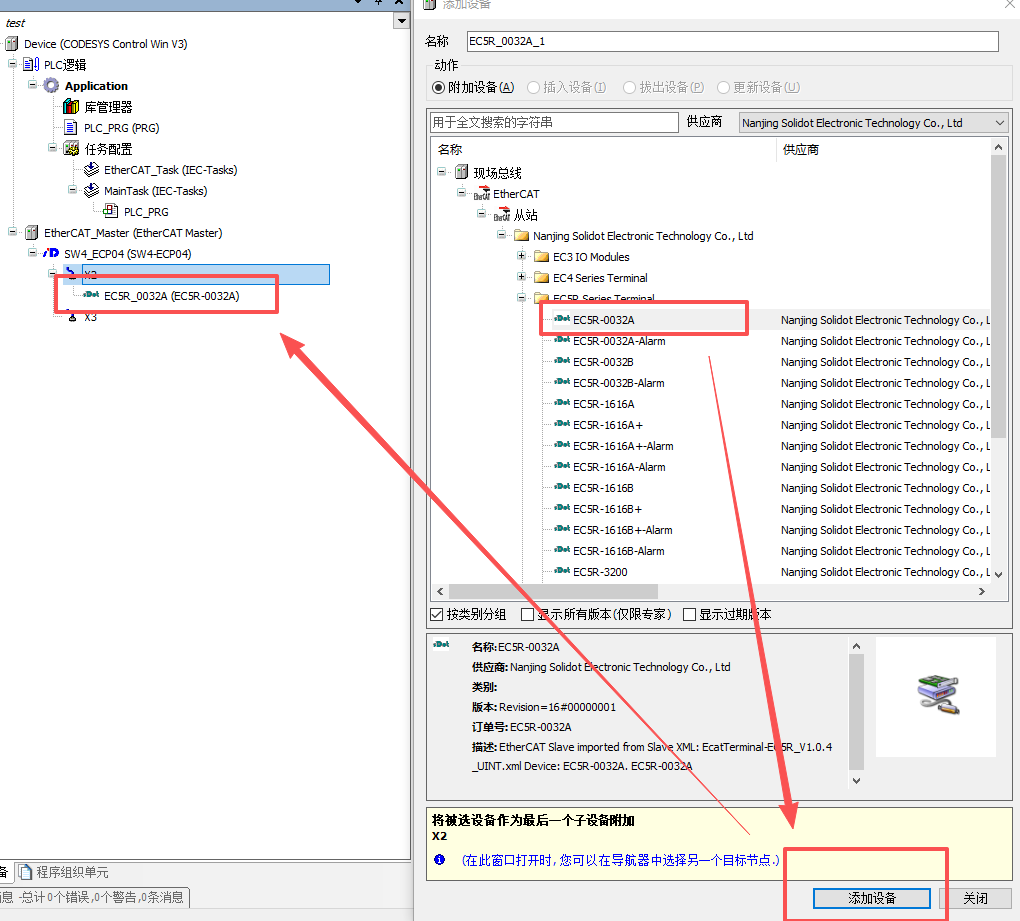
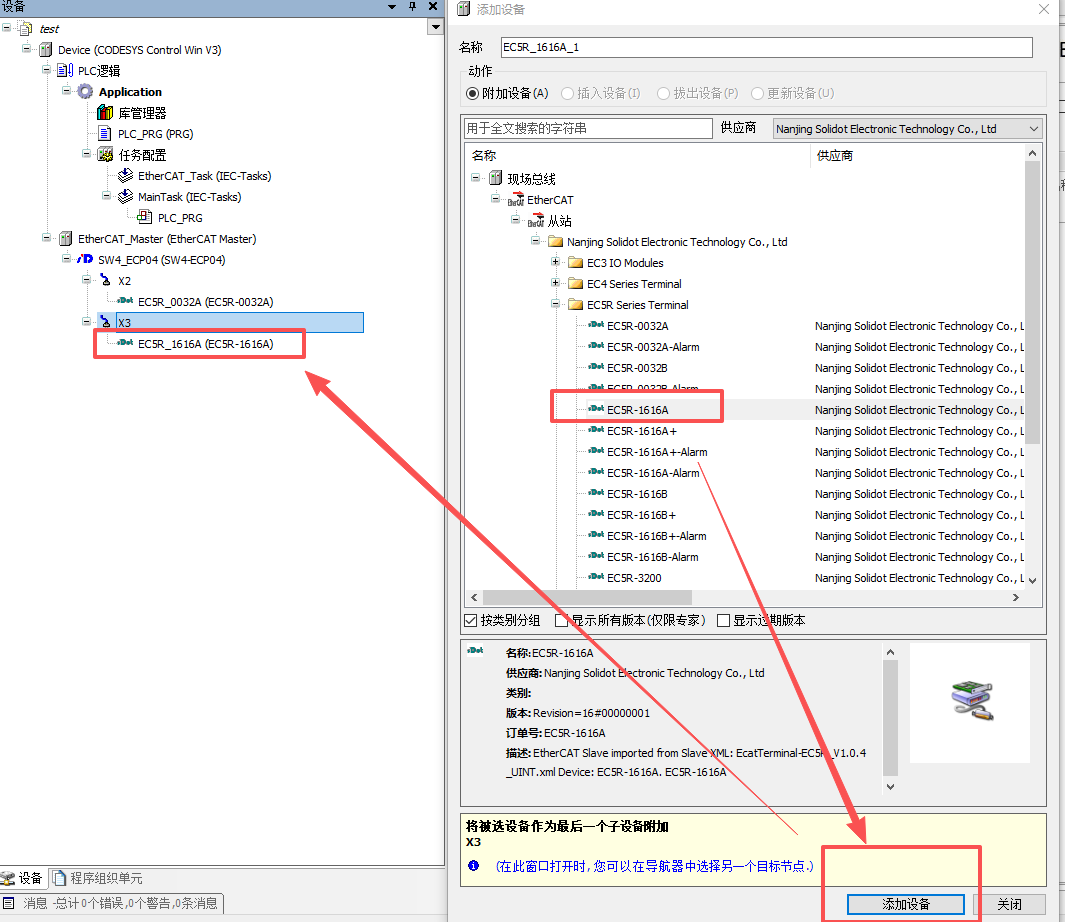
Right-click the X2 and X3 ports respectively to add devices, and the devices can be added under the corresponding branch module port.
In this example, a Solidot integrated module of the EC5R series is added as the device.
Configuration of the X4 port
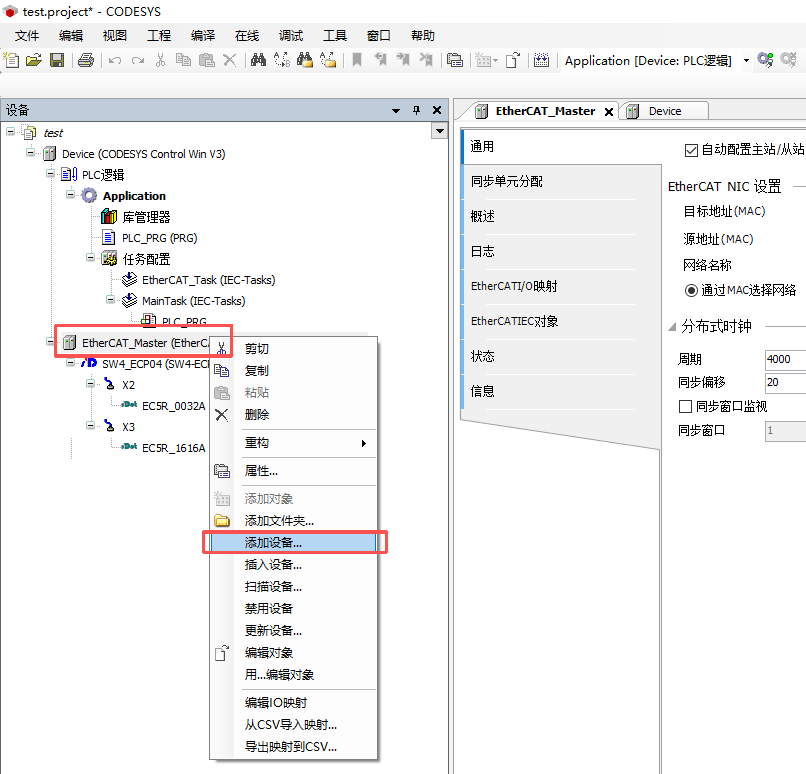
1. Right-click EtherCAT_master to add a device
After the branch module is added, right-click EtherCAT_master, add a device and select the device to be configured.
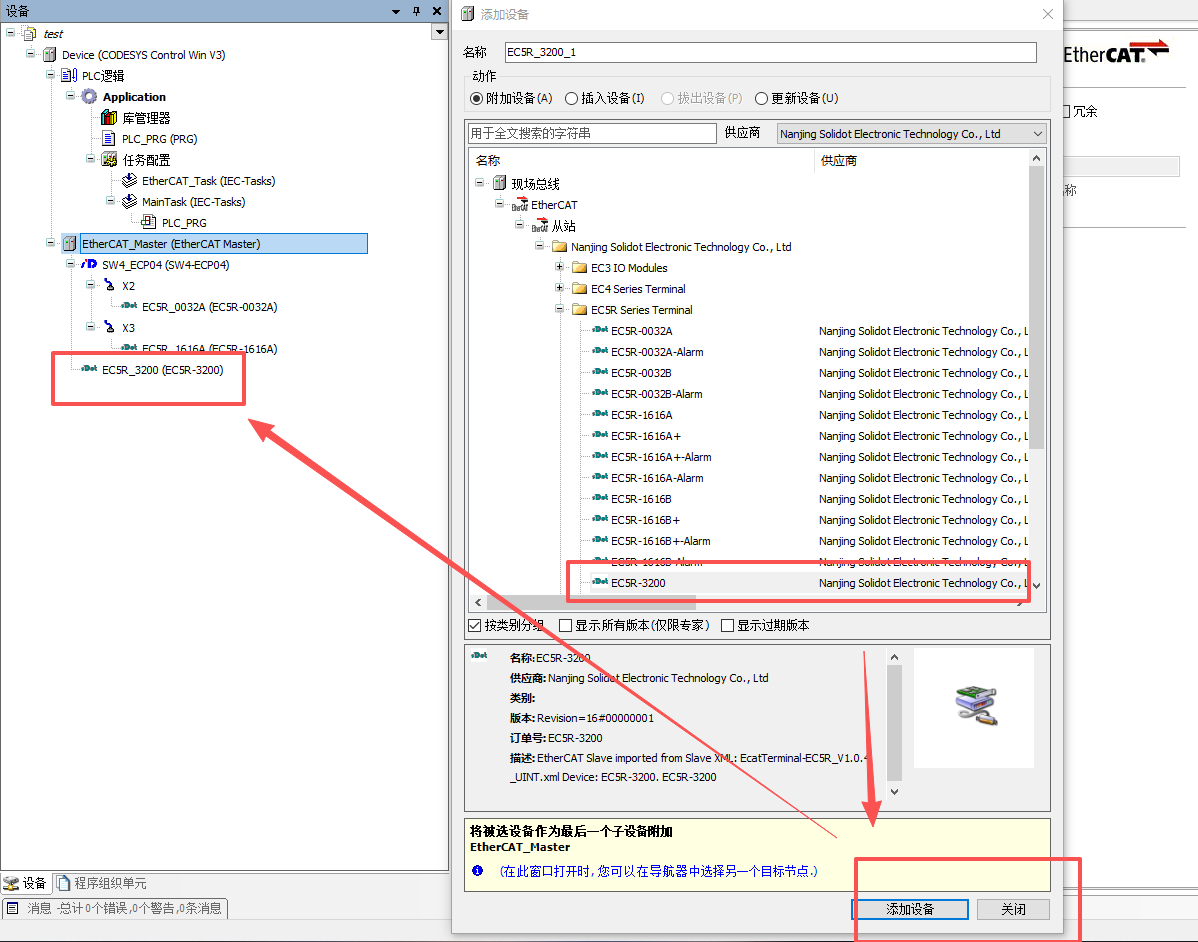
2. Arrange the device below the branch module
Add the module under the branch module of the actual configuration, which corresponds to the actual X4 port configuration.
The actual configuration is as follows:
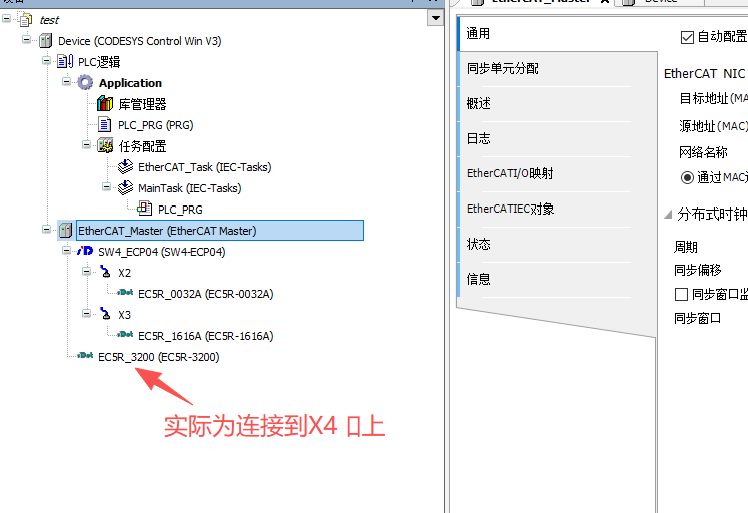
Note again: the key to X4 port configuration is the device position — X2 and X3 port devices are attached under their respective port nodes, while the X4 port has no separate port node, so attached devices must be added below the branch module of the actual configuration; this position corresponds to the X4 port of the branch module.