Knowledge

Quick overview
1. Demo Products
2. Master Platform
Googol GSNE-08-016-G-00 board + MotionStudio V2.4.4.1
3. Configuration file
EcatTerminal-GW6L-A0_V3.01_BOOL.XML
4. Application Scenario
Data Exchange between a Googol master and other EtherCAT Masters such as a downstream Beckhoff TwinCAT
5. Key operations
Import configuration file -> automatically scan the topology and open the board -> save -> restart -> communication monitoring
6. Application Scenario
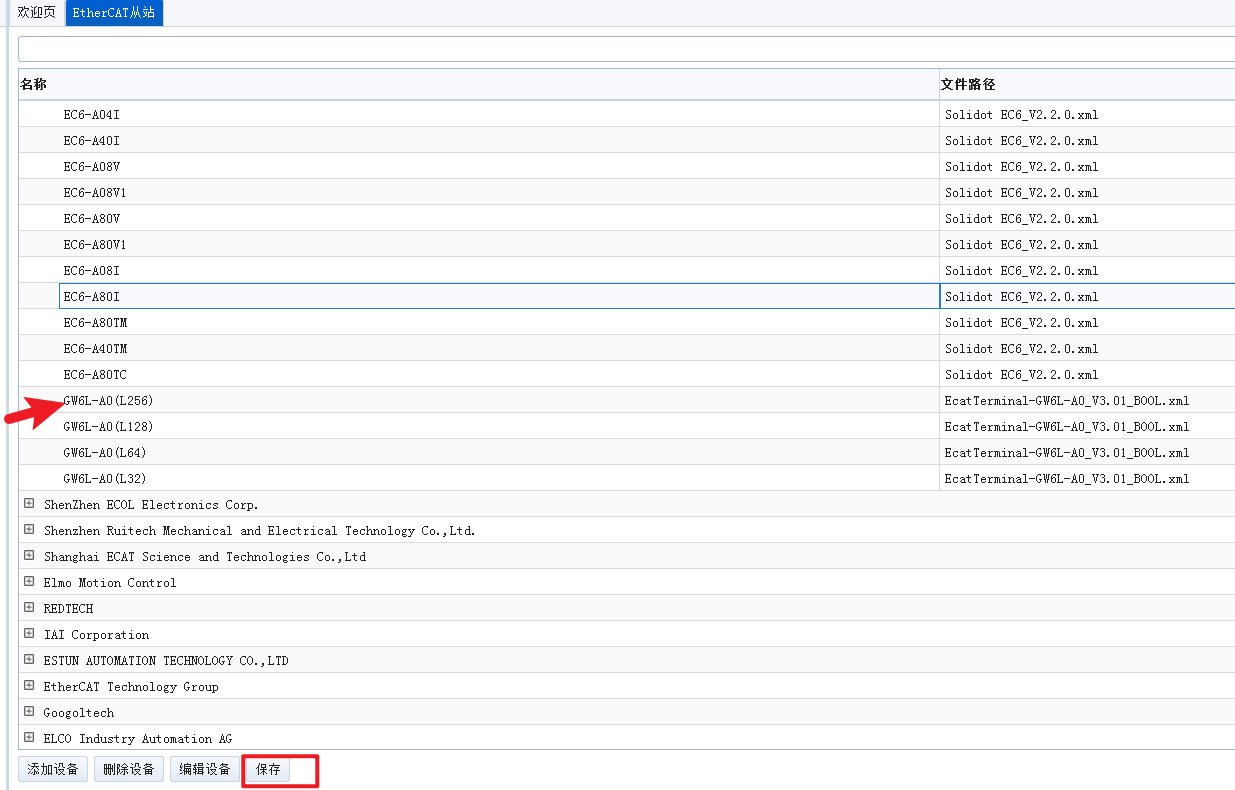
After adding a device, you must click "Save", otherwise the XML import will fail
GW6L-A0A0 (L256) is a slice gateway module of the Solidot GW6L series. As an EtherCAT Slave to EtherCAT Slave (fixed length 256 bytes) kit, it enables data Exchange between a Googol GSNE board master and other EtherCAT Masters such as a downstream Beckhoff TwinCAT. So how do you complete the full configuration in Googol MotionStudio, from configuration file import and automatic scanning to communication monitoring?
The overall configuration consists of three steps: first complete the preparations such as software and driver installation, then import the XML configuration file of the GW6L-A0A0 (L256) (note that you must save after adding the device), and finally restart the software to perform automatic scanning. Once the slave enters the OP Operational state, monitor the input and output data via process data Mapping. This article uses the Googol GSNE-08-016-G-00 board as an example to explain the key points of each step one by one.
Preparations before commissioning
Item | Parameter |
Googol board model | GSNE-08-016-G-00 (EtherCAT Master) |
Gugao software | MotionStudio_Win32_Develop_V2.4.4.1 |
GW6L Series Gateway module Models | GW6L-A0A0 (L256) (EtherCAT Slave to EtherCAT Slave, 256 bytes each for input and output) |
GW6L-A0 (L256) configuration file | EcatTerminal-GW6L-A0_V3.01_BOOL.XML |
Network topology
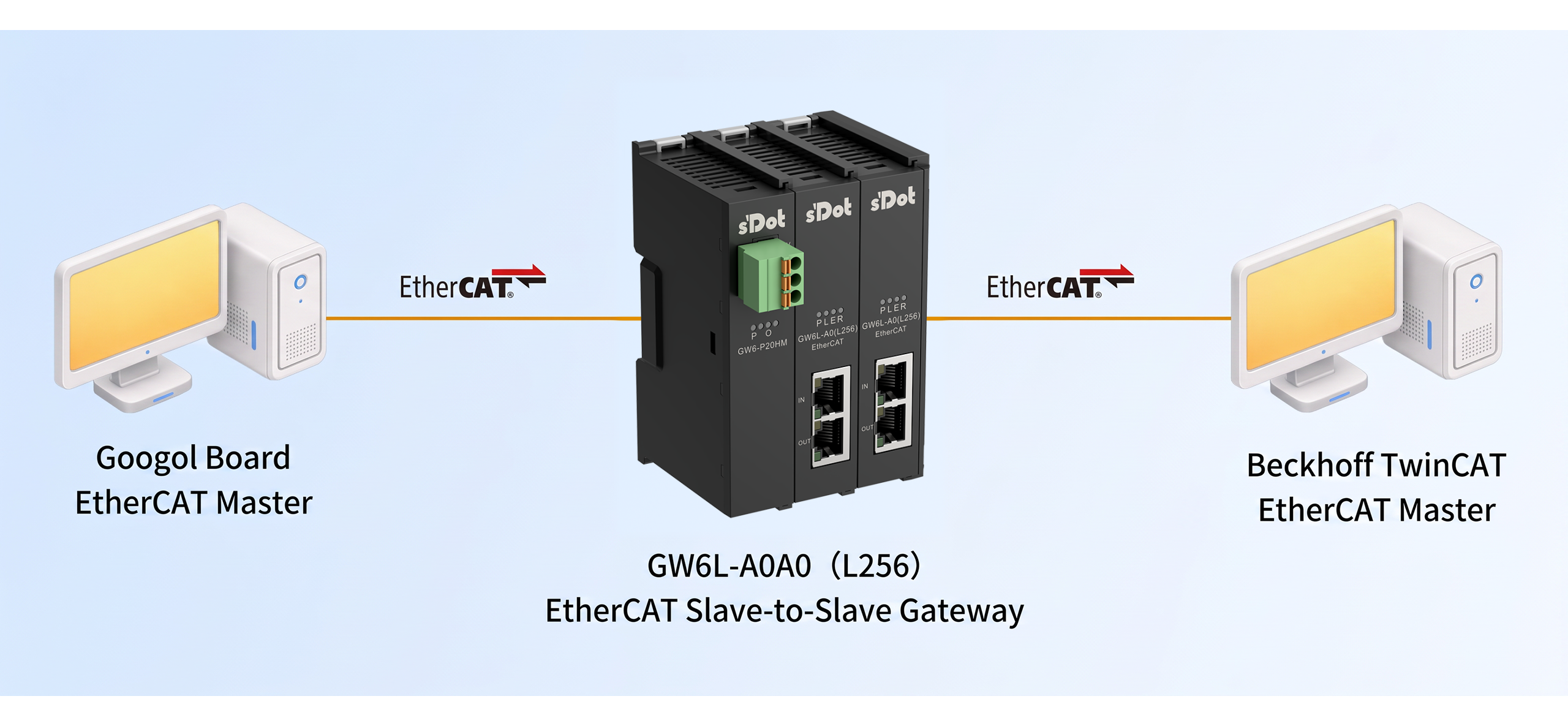
The Gugao GSNE board acts as the EtherCAT Master and connects to the GW6L-A0A0 (L256) gateway via the EtherCAT bus. This gateway is an EtherCAT Slave to EtherCAT Slave kit; another EtherCAT Master device such as Beckhoff TwinCAT can be connected downstream, enabling data exchange between two different EtherCAT Masters.
Configuration in Gugao MotionStudio software
1. Preparations
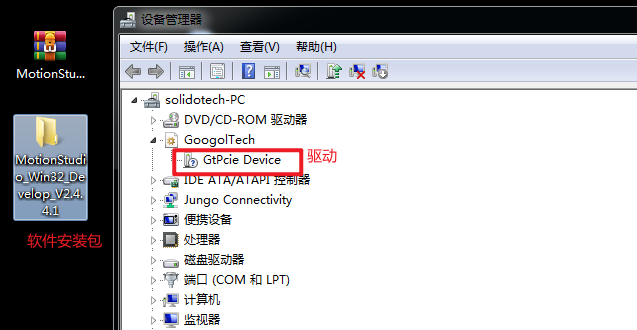
Contact the manufacturer to obtain the software installation package, and install the software and driver correctly.
2. Importing the configuration file
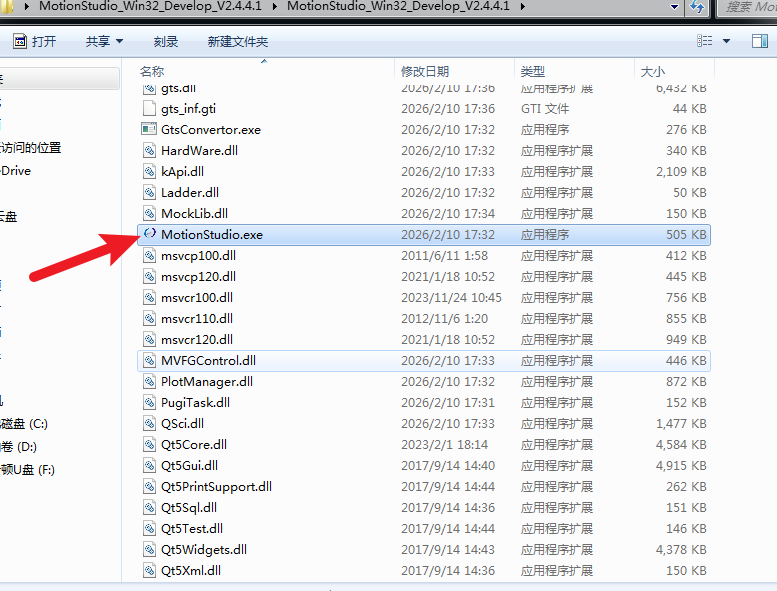
Double-click the application to launch MotionStudio.
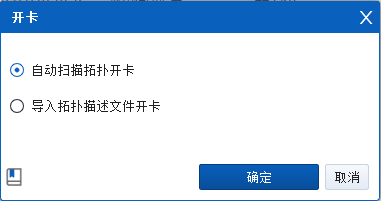
Click "Auto Scan Topology and Open Card".
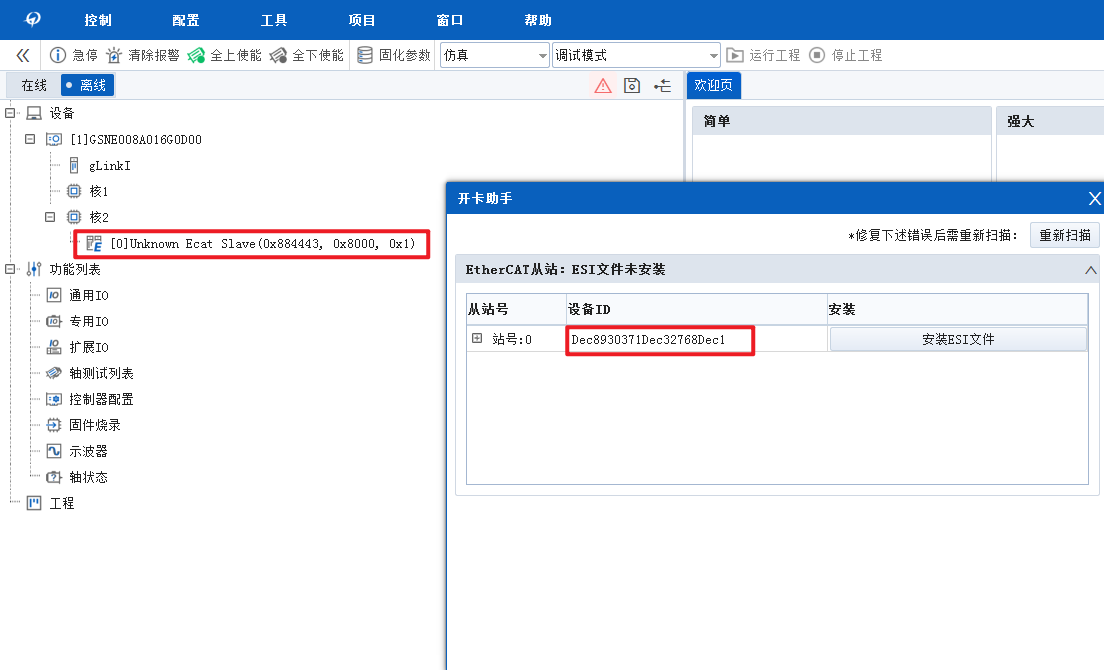
An unknown device is reported because the configuration file for the corresponding slave has not been imported.
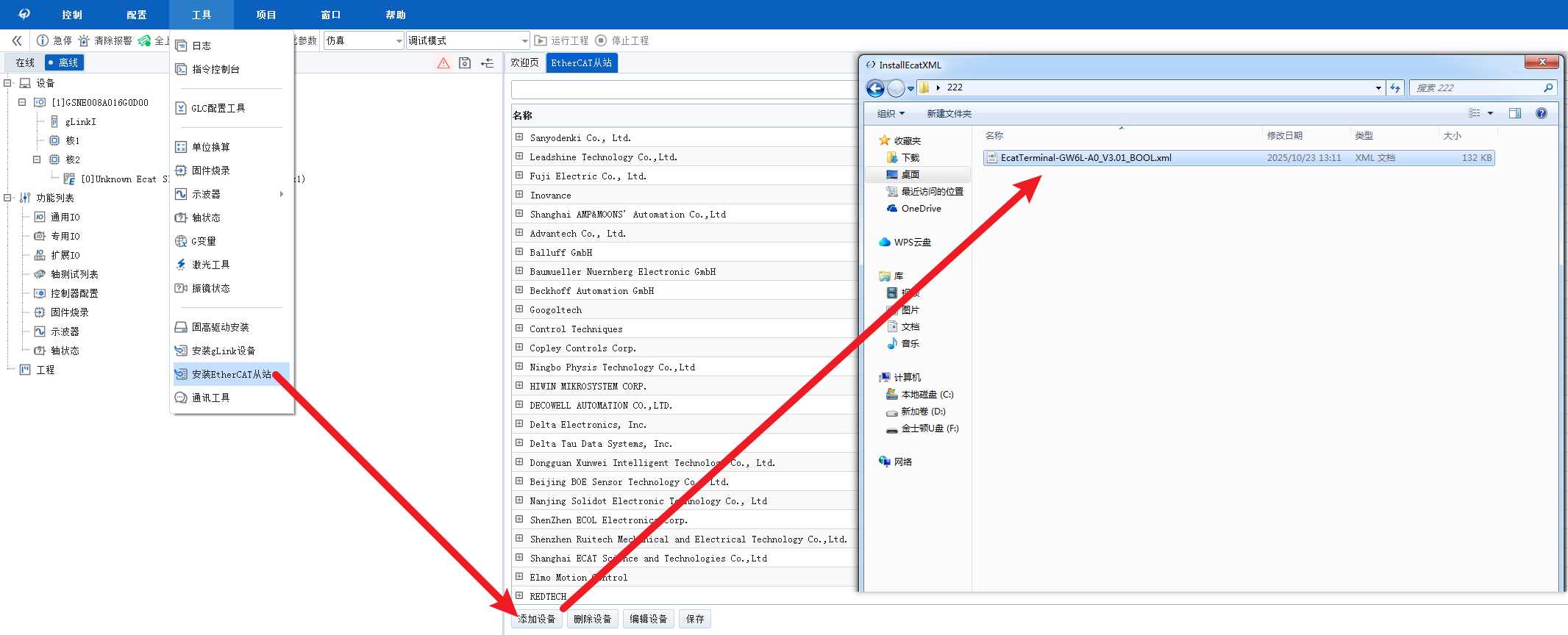
Click "Tools" → "Install EtherCAT Slave" → "Add Device" in sequence, then select the corresponding XML configuration file to import.
Note: After adding the device, you must click "Save", otherwise the XML import will fail. Once added successfully, the corresponding product model is displayed in the list.
3. Communication monitoring
Restart the software and perform an auto scan; the slave enters the OP operational state and communicates normally.
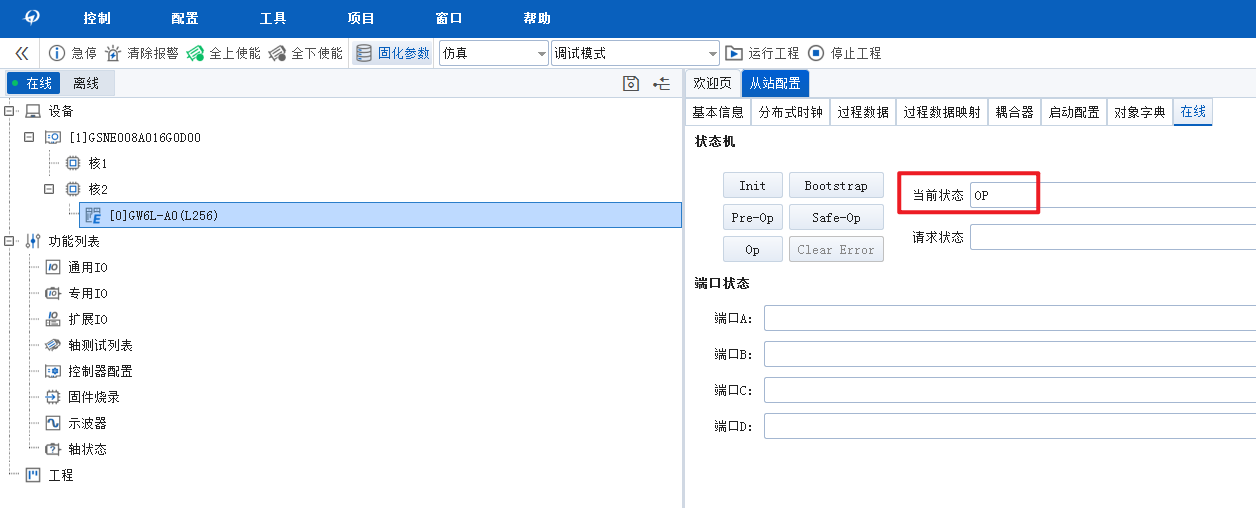
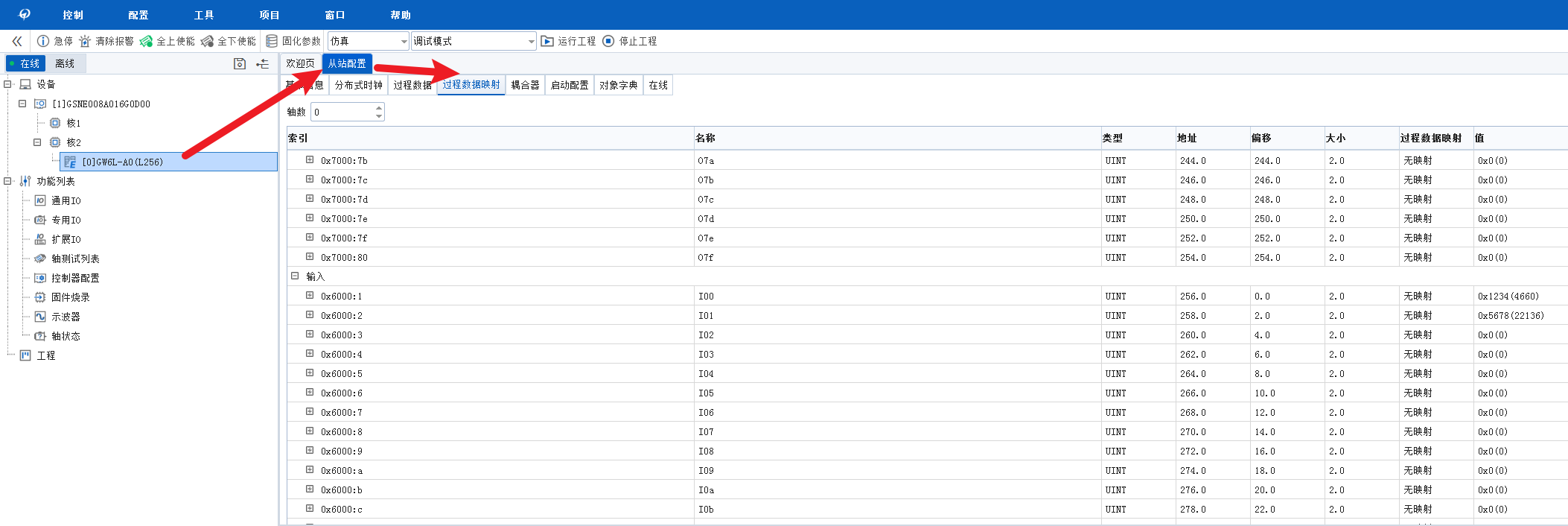
Click slave > "Slave Configuration" > "Process Data Mapping" to monitor the input and output data (256 bytes each).