Knowledge

Article overview
1. Applicable protocol
PROFINET
2. Applicable products
3. Configuration Tool
TIA Portal
4. Core process
Scan Devices → Assign IP address → Assign PROFINET Device Name → Verify in Network View
5. Key prerequisite
The IP address of the PC/PG must be in the same network segment as the PLC
6. Key notes
The device name must be unique and must correspond exactly to the MAC address printed on the module
In a PROFINET fieldbus system, whether it is the initial configuration or a device replacement, a "Device Name" must be assigned to the PROFINET device. The device name is used to uniquely locate the slave device within the PROFINET network. Only after the master correctly identifies the device name can it match the corresponding slave device when downloading the configuration. This article covers everything from principles to hands-on operation, using Solidot's Slice I/O PROFINET coupler XB6S-PN2002 as an example, and demonstrates the standard device name assignment process in TIA Portal to help you avoid common pitfalls.
I. Why does PROFINET require a "device name"?
PROFINET uses a device addressing method that combines "Device Name (station name) + IP address" in industrial Ethernet. In a PROFINET network, the identity of a device consists of two aspects:
● Device name: the logical name used to uniquely locate a slave device within the PROFINET network, serving as the device's "identity";
● IP address/subnet mask: the address parameters used for communication at the network layer, serving as the device's "network address".
Before the configuration software (such as TIA Portal) downloads the configuration, the PLC master needs to identify and match the corresponding slave device on the network via its device name. This can be understood as follows: the device name is like a key, and the IP address is like a keyhole — only when both are configured correctly and correspond to each other can the master "find the right match" and establish a normal PROFINET communication connection with the slave.
II. The complete process of PROFINET device name assignment
1. Scan Devices in the Network
Open TIA Portal and switch to the project view. In the project tree on the left, locate Online Access, select the correctly connected network interface card (NIC), and double-click Update Accessible Devices. Once the update is complete, the PROFINET slave device (coupler) will appear in the list of accessible devices.
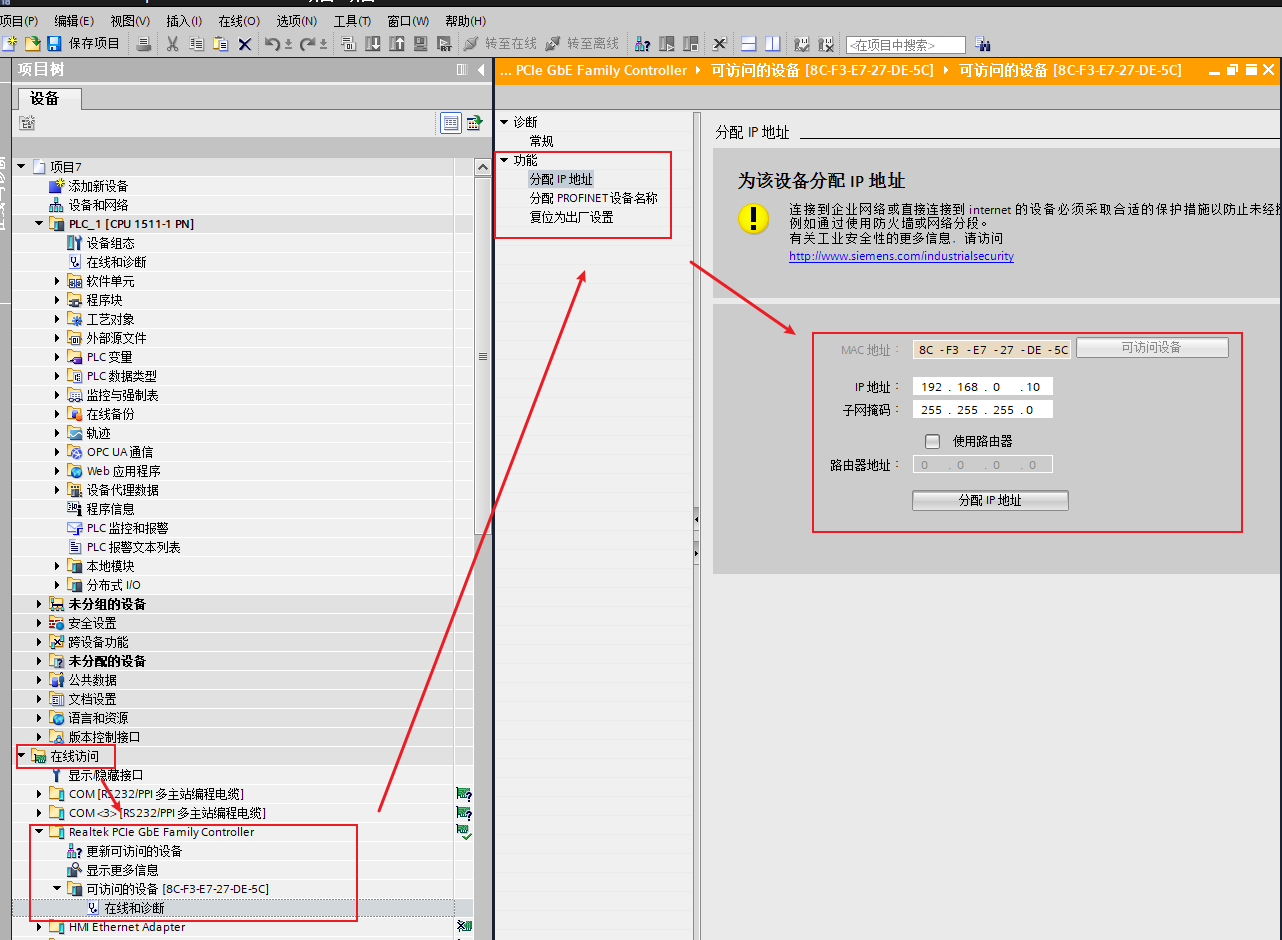
Note: Make sure the IP address of the PC/PG is in the same network segment as the PLC; otherwise, the device cannot be scanned. Change the PC's IP address first and try again.
2. Assign the initial IP address
Double-click Online & diagnostics under the scanned slave device, click Assign IP address in the Functions menu, enter the IP address and subnet mask in sequence, and then click the Assign IP address button at the bottom of the screen to complete the download.
3. Assign PROFINET Device Name
After completing the IP address assignment, select Assign PROFINET Device Name in the Functions menu, enter the device name to be set, and click the Assign Name button to complete the download of the slave device name.
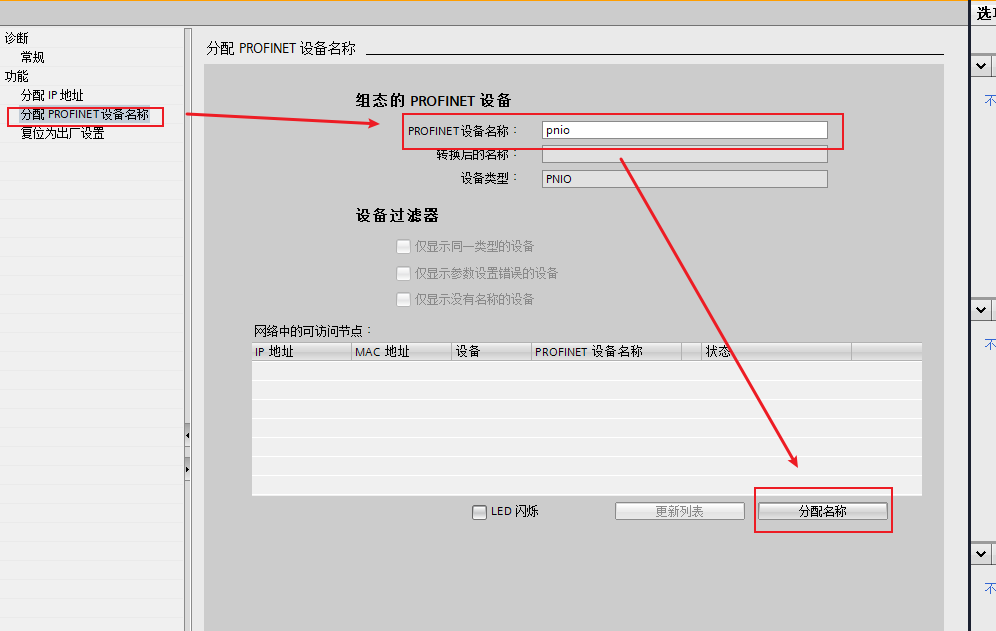
The device name assigned in this way will match the name configured for the device in the configuration software, allowing the master to correctly identify and match it during subsequent configuration downloads.
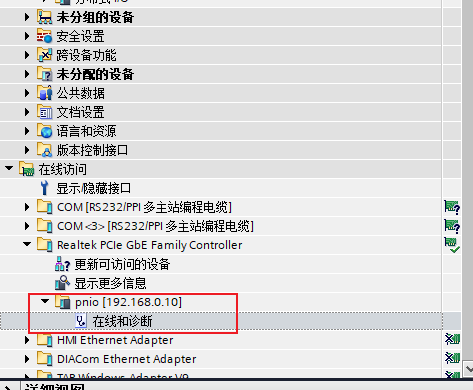
4. Verify and confirm in the Network View
In the Network View of the configuration, assign a device name to each PROFINET device (PLC and coupler), and use Update List to check the status of the Accessible Nodes in the Network. If the node status shows OK, the name assignment was successful; if not, select the device and click Assign Name to download again.
Finally, be sure to check that the MAC address printed on the module matches the MAC address corresponding to the assigned device name. Once confirmed, close the window to complete the entire process of name assignment and configuration matching.
III. Precautions when assigning device names
● Device names must be unique within the same PROFINET network and must not be duplicated;
● Device names are not case-sensitive, but a consistent naming convention across the whole project is still recommended;
● When multiple modules are present in the system, be sure to check the MAC address printed on each module to avoid mismatching different modules during configuration;
● Use concise and easily recognisable character combinations for device names to facilitate later maintenance and troubleshooting;
● The order in which modules are added in the configuration must match the actual physical topology; otherwise, communication will also fail.