Knowledge

Quick overview
1. Applicable modules
XB6S-EC2002 coupler, can carry digital, analog, function module and other I/O
2. Master board
Hilscher CIFX 50-RE (PC board, EtherCAT Master)
3. Configuration software
SYCON.net
4. Core workflow
Import XML → Add CIFX board → scan for slaves → master/slave configuration → download configuration → status monitoring → data exchange test
5. Key prerequisites
The slave must be powered up first and connected to the port on the CIFX board closest to the Indicator via an Ethernet cable
6. Key note
Any modification in SYCON.net takes effect only after it is downloaded to the board
XB6S-EC2002 is a Solidot slice I/O EtherCAT protocol coupler that can be used with digital, analog and function module I/O. When it is connected as an EtherCAT Slave to a Hilscher CIFX 50-RE master board, configuration must be completed in SYCON.net and the configuration downloaded to the board before data exchange can be established. So what steps are required to complete this communication setup?
From importing the ESI file (.xml), adding the CIFX master, scanning for slaves and adding the actual modules, to configuring the master and slave parameters and downloading the configuration, and then to status monitoring and data exchange testing, every step is closely linked — in particular, any change in SYCON.net only takes effect after it is downloaded to the board. This article takes the XB6S-EC2002 as an example to demonstrate the complete configuration process in SYCON.net.
Test environment
Controller model | CIFX 50-RE (EC board) |
XB6S series module model | |
Configuration software | SYCON.net |
Network topology
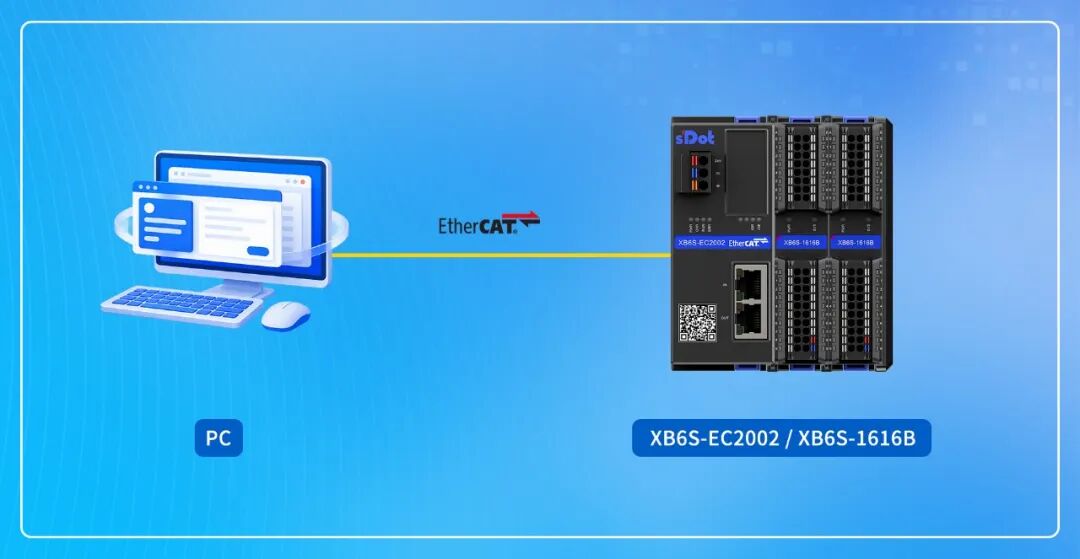
The host computer uses a Hilscher CIFX 50-RE board as the EtherCAT Master and connects via the EtherCAT bus to the XB6S-EC2002 coupler and the XB6S-1616B modules connected to it, forming the test network.
Configuration in SYCON.net
1. Import XML
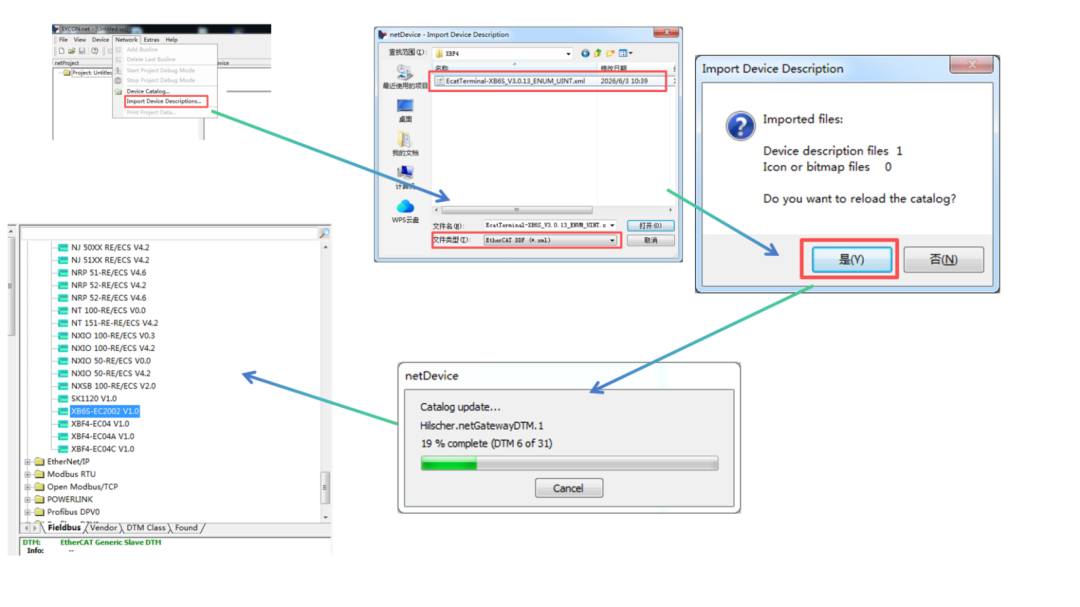
That is, add the ESI file (.xml file) of the slave to the device catalog. Select [network] → [Import device Descriptions ... ] in the menu bar → select the.xml file → [Open] → [Yes]; the loaded slave can then be found in the device catalog on the right side of the interface. If the device catalog is not displayed on the right side, open it via [network] → [device catalog ... ] in the menu bar.
2. Add the CIFX board
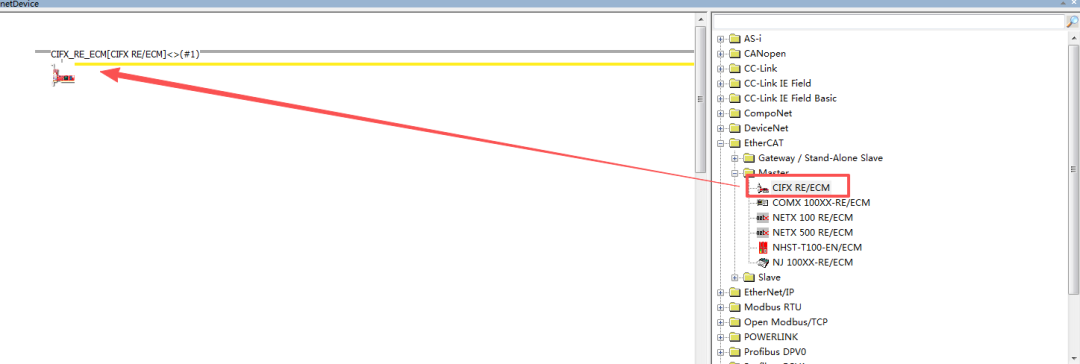
In the device catalog, find EtherCAT → master → CIFX RE/ECM and drag the CIFX onto the gray line in the middle of the interface with the left mouse button.
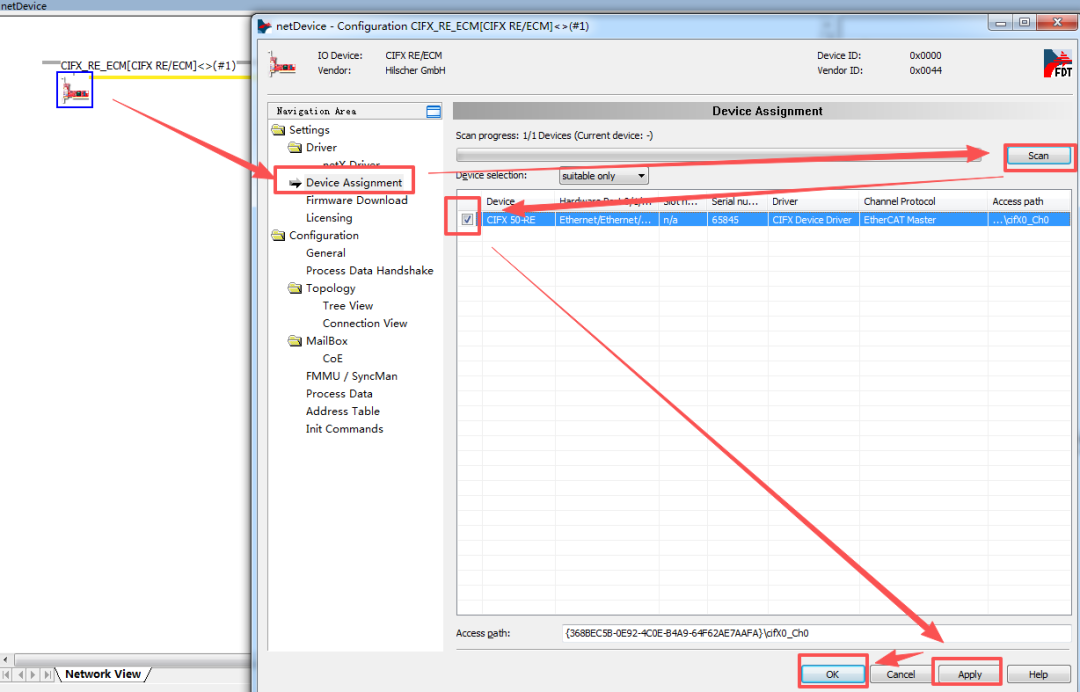
Double-click the dragged CIFX icon, or right-click the icon → [configuration] to open the configuration interface, expand device Assignment → [scan], find the CIFX 50-RE and check it, then click [Apply] → [OK] to close the window.
3. Scan for slaves
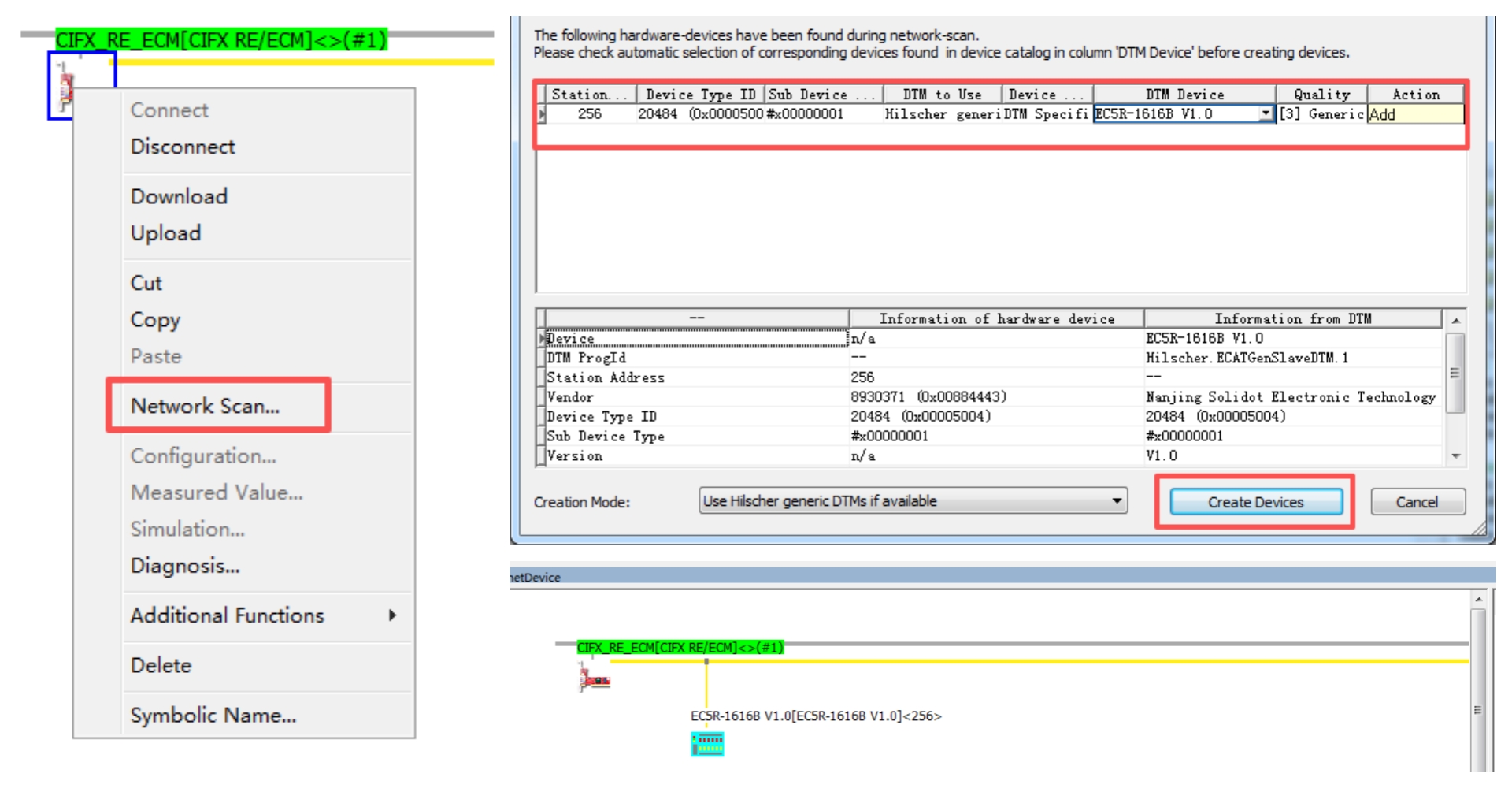
Right-click the CIFX icon → [network scan] to scan for slaves. Note that before network scan, power on the slave and connect it to the CIFX board with an Ethernet cable (connect to the port closest to the Indicator).
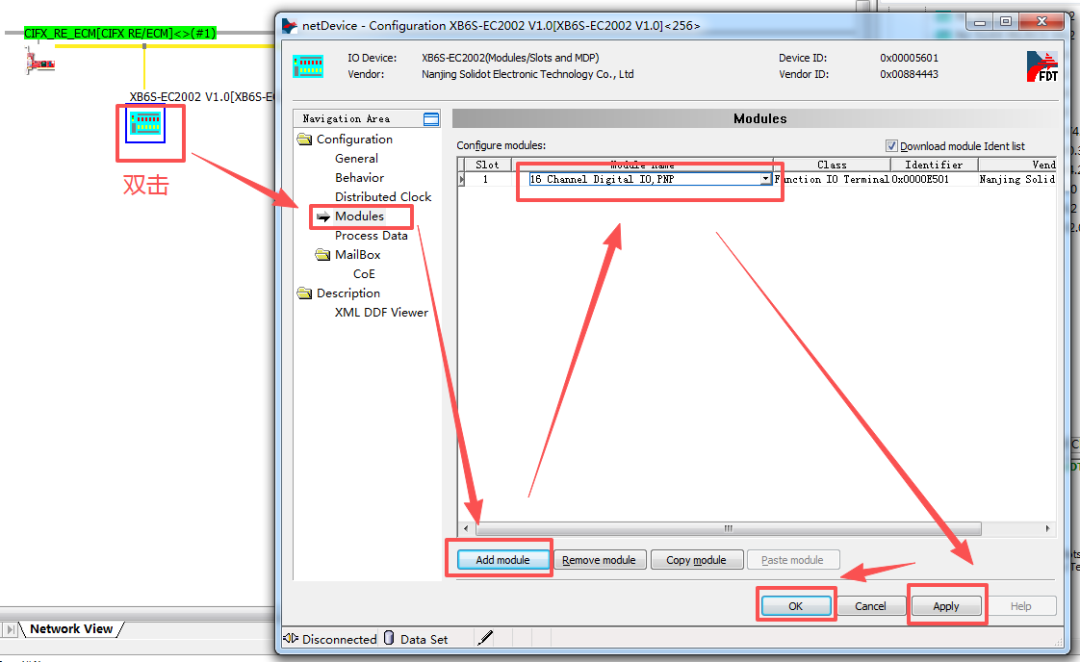
Double-click the XB6S coupler to add the modules actually in use.
4. Master and slave EtherCAT configuration
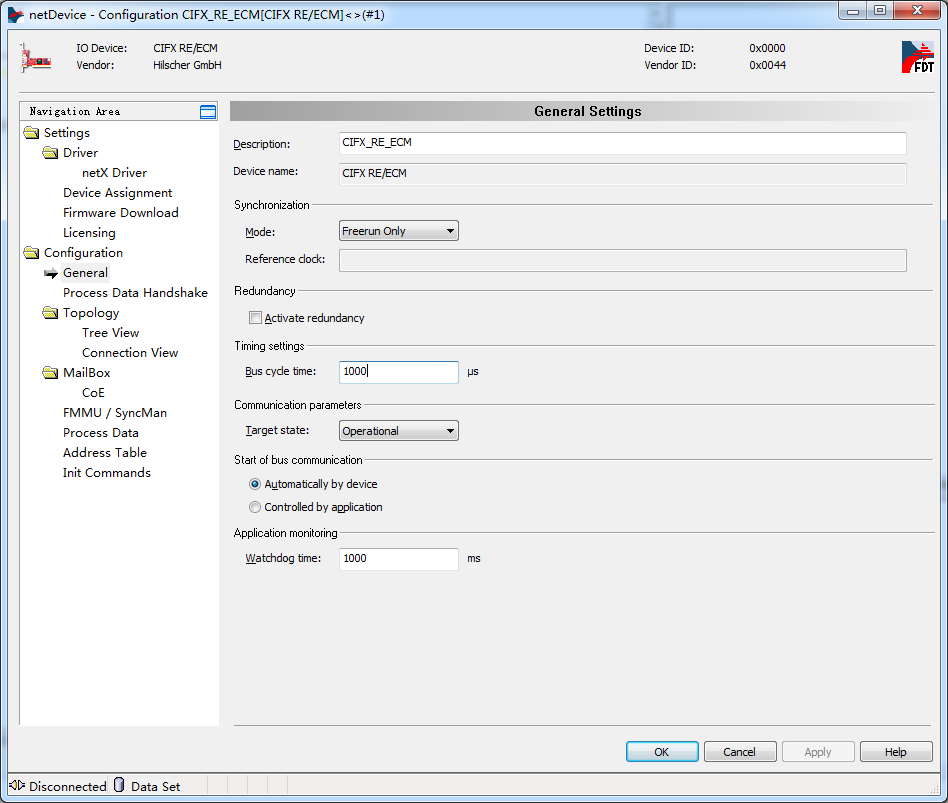
Right-click the CIFX icon → [Disconnect], double-click the CIFX icon to open the master configuration, where you can configure the master's Cycle time, Init state, Synchronous mode, communication trigger, watchdog, etc.
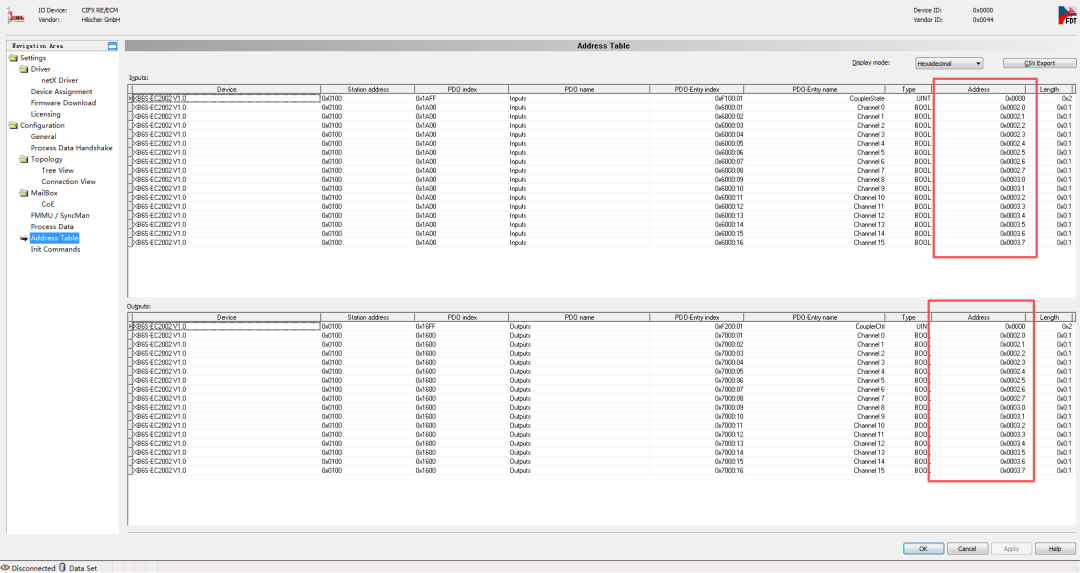
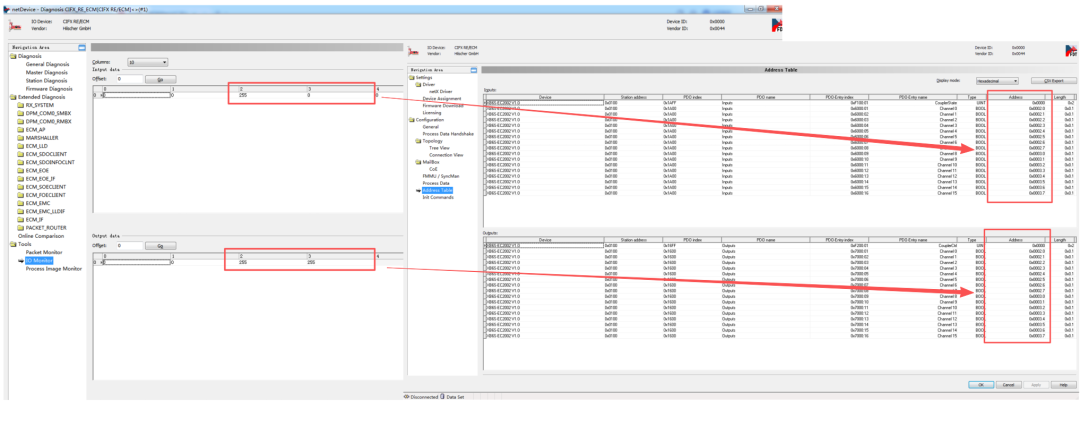
In addition, the network topology can also be viewed. The address table is the address used for PI (process Image, i.e. Real-time Communication data) communication. The address table arranges the PI data of all slaves in the network in topology order, i.e. each PI data item of each slave has a unique address in the address table.
5. Download the configuration to the board
After the master and slave configuration is complete, right-click the CIFX icon → [download] to download the configuration information to the board. Alternatively, right-click → [Connect] first, then right-click → [download]; confirm the download in the prompt that appears. After the download is complete, the output Windows window at the bottom of the interface indicates that the download is complete.
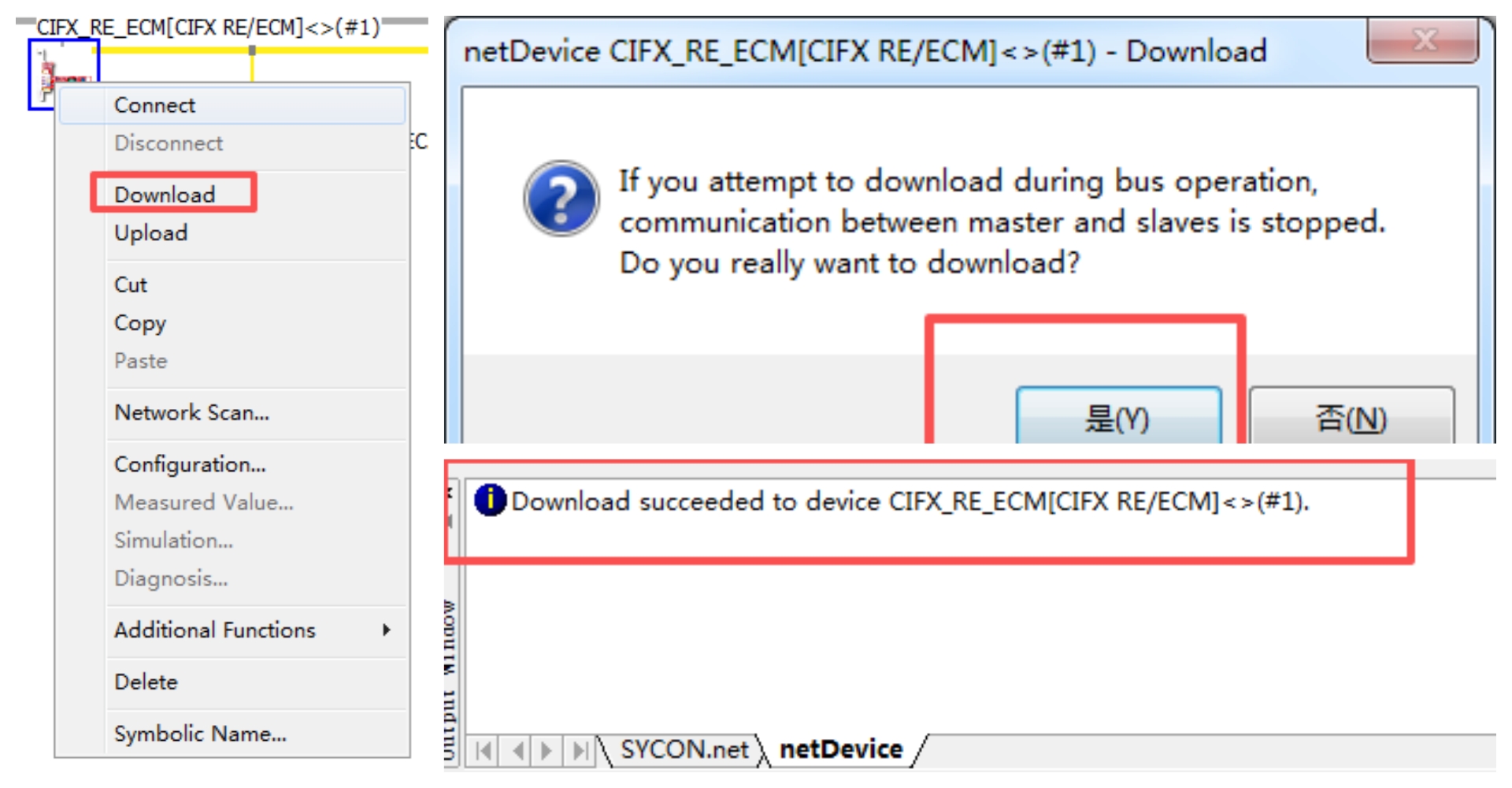
Note: The download step cannot be omitted. Any modification in SYCON.net only takes effect once it has been downloaded to the board.
6. Status monitoring
After the configuration has been downloaded, the board runs according to the configuration. Right-click the CIFX icon and select [Connect], then right-click the CIFX icon and select [Diagnosis ... ] to monitor the board's operating status.
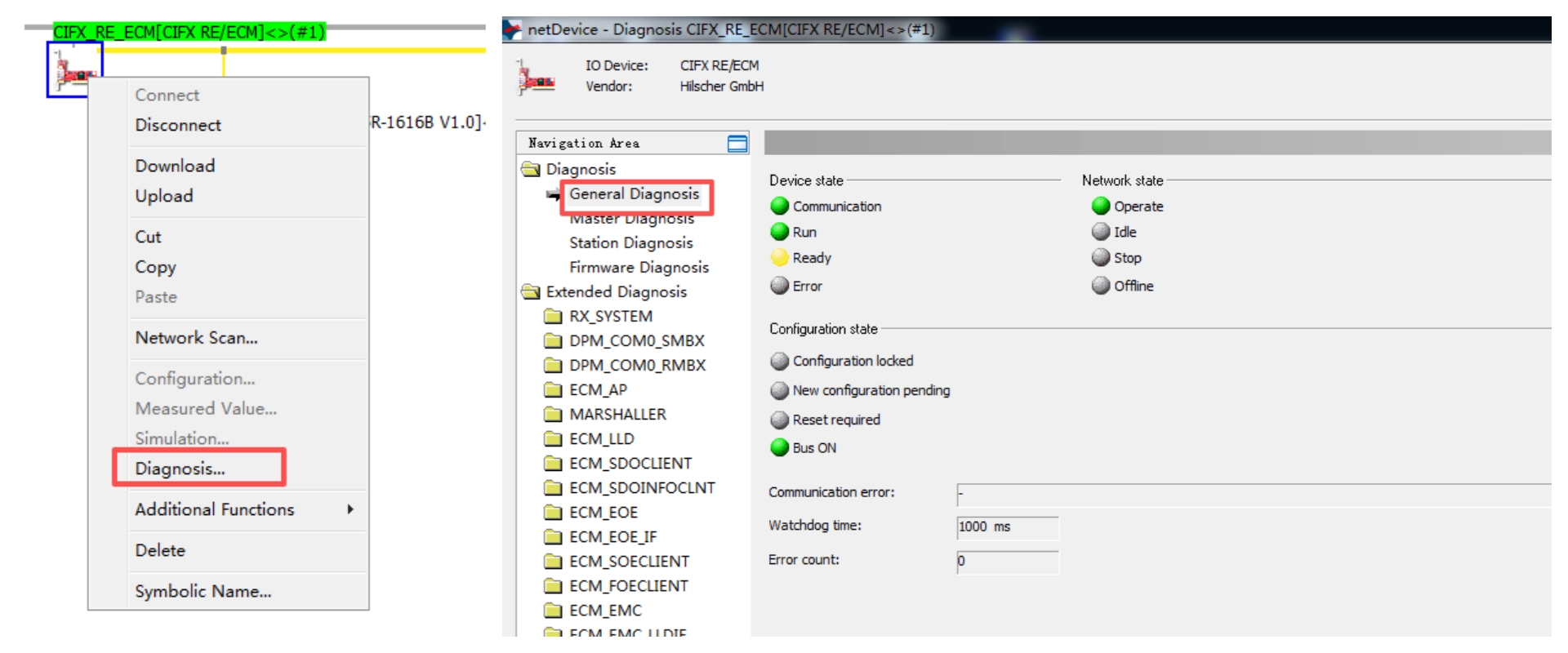
As can be seen, the board's current state is Communication+run, indicating that the board is running and performing data exchange normally. In addition, the network state is Operate, indicating that the network is already performing data exchange; when the network state is Idle, it indicates that the EtherCAT network is not in OP state. Click Station Diagnosis to see whether a slave is offline.

7. Data Exchange Test
Once the board is running, go to [Diagnosis] → [Tools] → [IO Monitor]. Here too there are two sections: the upper section is input data, i.e. the data the master reads from the slaves; the lower section is output data, i.e. the data the master writes to the slaves.
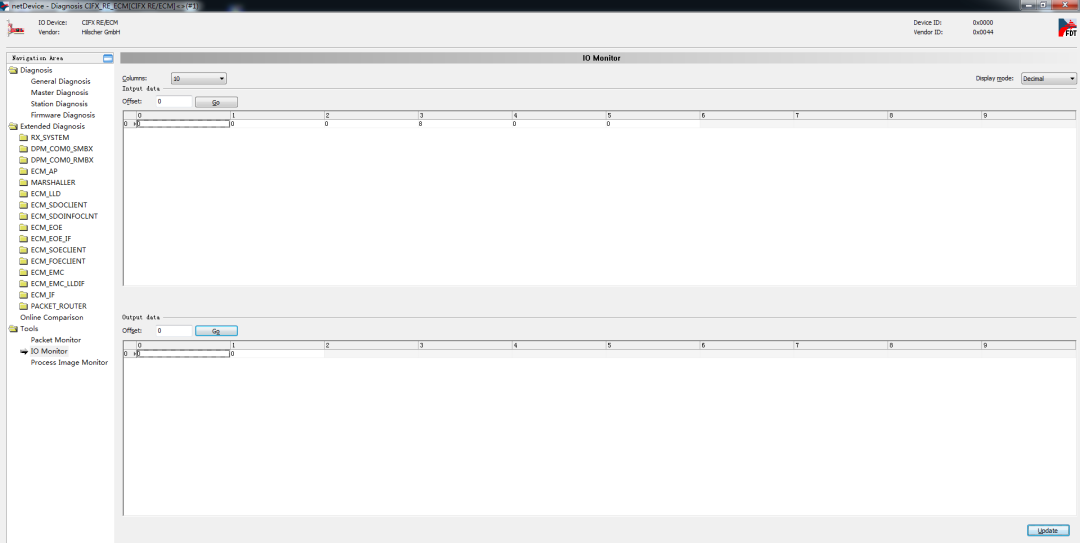
The XB6S-1616B has 16 DI channels + 16 DO channels. The first 8 DI channels are wired to the first 8 DO channels, so when the board sets the first 8 DO channels to 1, the first 8 DI channels also acquire the 1 signal. Enter 255, i.e. 0xFF, in both the third and fourth bytes of output data in IO Monitor, then click [Update]. You can see that the third byte of input is also updated to 255, indicating that the value 255 has been written by the board (master) to the module and the module's value has been returned to the board, and that the corresponding I/O points on the I/O module have also lit up.
The above is the complete procedure for configuring the XB6S-EC2002 on a Hilscher CIFX 50-RE board in SYCON.net. Keep three key points in mind for stable communication: first, power up the slave first and connect it with an Ethernet cable to the port on the CIFX board nearest the indicators; second, after the coupler has been scanned, double-click the coupler to add the modules actually in use; third, any modification in SYCON.net only takes effect after it has been downloaded to the board.