Knowledge

EtherCAT disconnects one slave — do all others go offline? Hands-on TwinCAT Hot Connect configuration
Article Overview
1. Demo Product
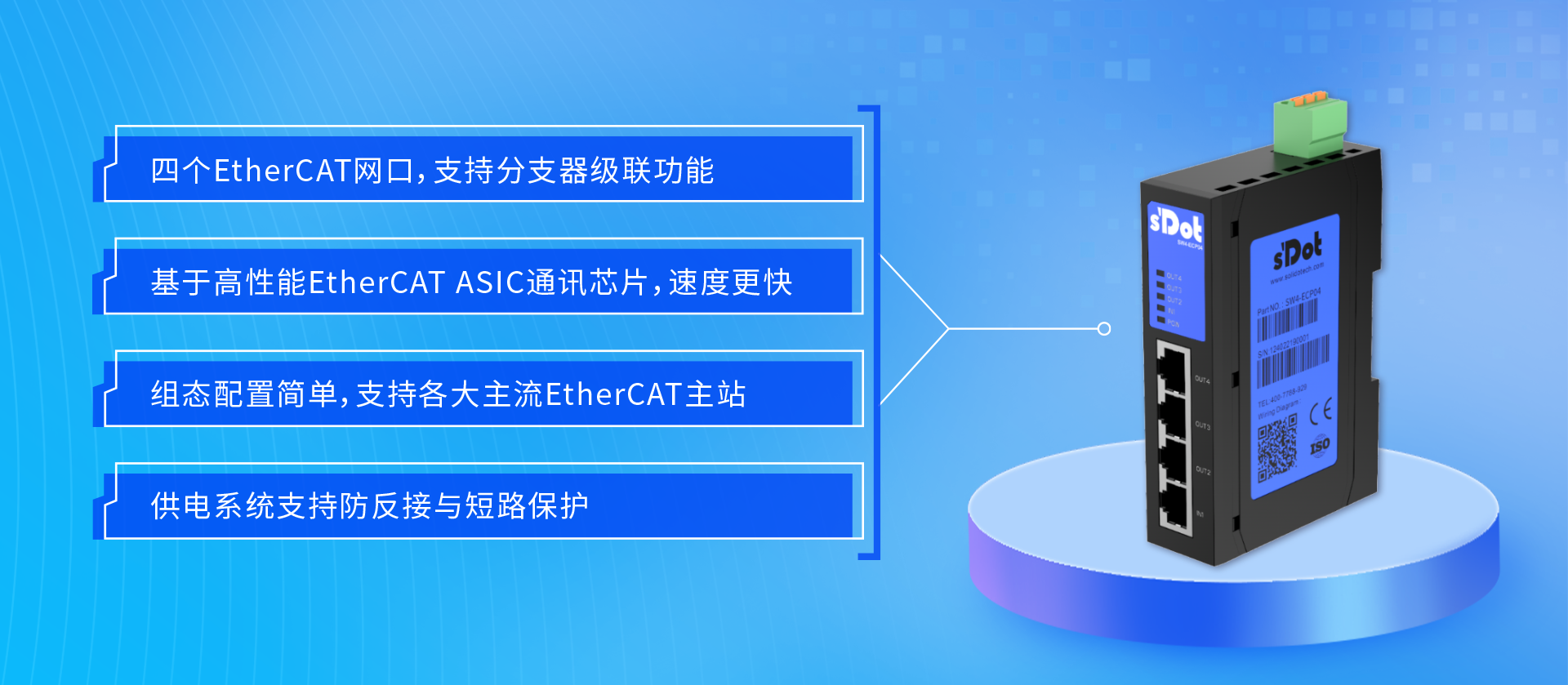
Solidot EtherCAT 4-Port Distributor SW4-ECP04
2. Application Scenario
Flexible hot-swapping of EtherCAT slave devices without system downtime
3. Common Issue
Without Hot Connect configuration, disconnecting any slave causes I/O data of other slaves to stop updating
4. Solution
Add slaves to the Hot Connect Group in TwinCAT; complete configuration in 3 steps
5. Configuration Result
Slaves can go online/offline independently without affecting each other
When using an EtherCAT distributor in star or line topology, you may encounter this situation: disconnect one slave, and the I/O data of other slaves stops updating.
This is not a distributor issue, but rather because TwinCAT does not enable Hot Connect by default. This article uses the Solidot SW4-ECP04 4-port distributor as an example to demonstrate how to configure Hot Connect for free hot-swapping of slaves.
I. Hardware Configuration
The SW4-ECP04 is equipped with 4 EtherCAT ports (RJ45 interfaces), supporting both star and line topologies. Wiring methods are described below.
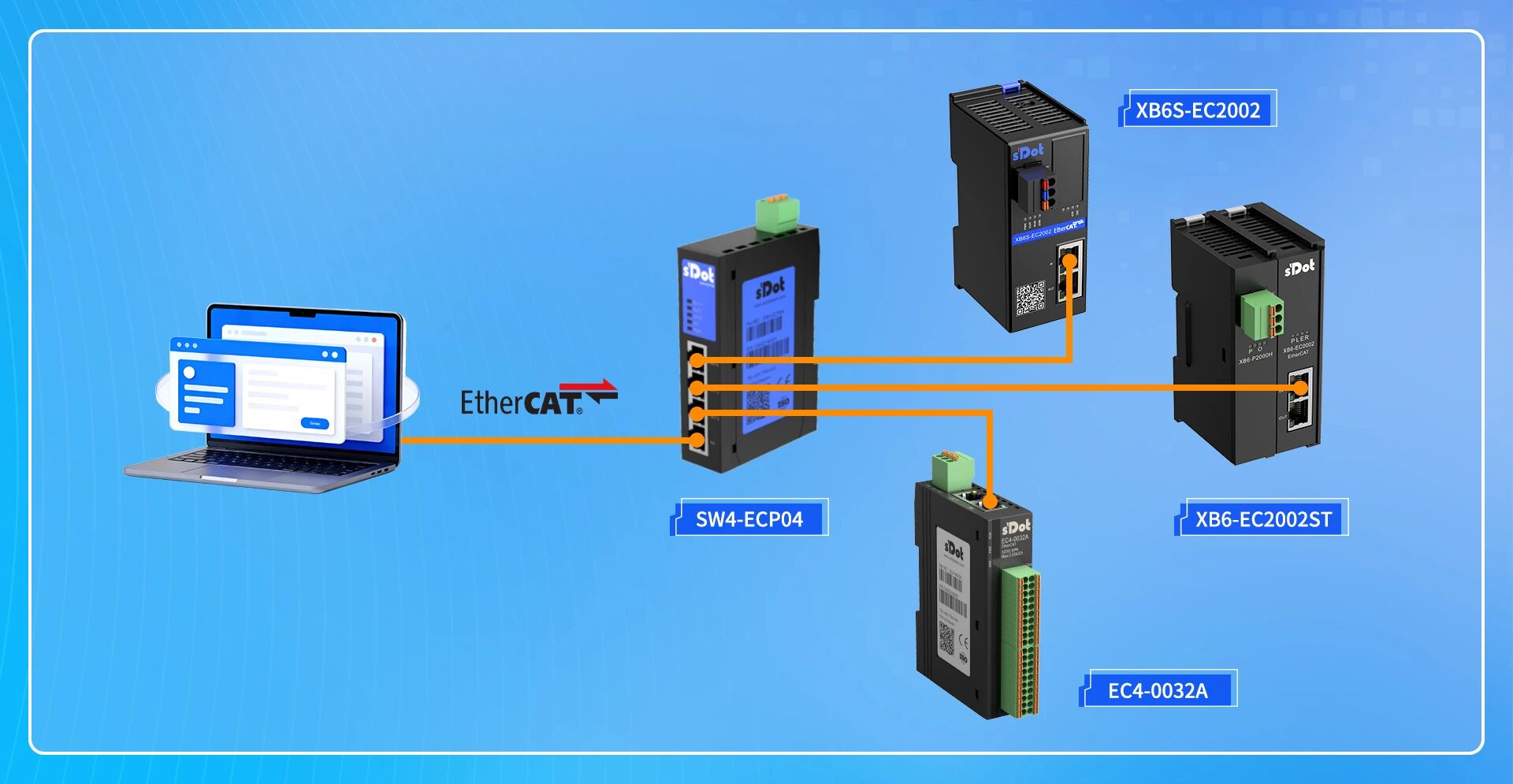
1. Star Topology
Connect the PC (TwinCAT master) to the IN port of the SW4-ECP04, then connect from the three OUT ports to:
● XB6S-EC2002 coupler and its modules
● XB6-EC2002ST coupler and its modules
● EC4-0032A module
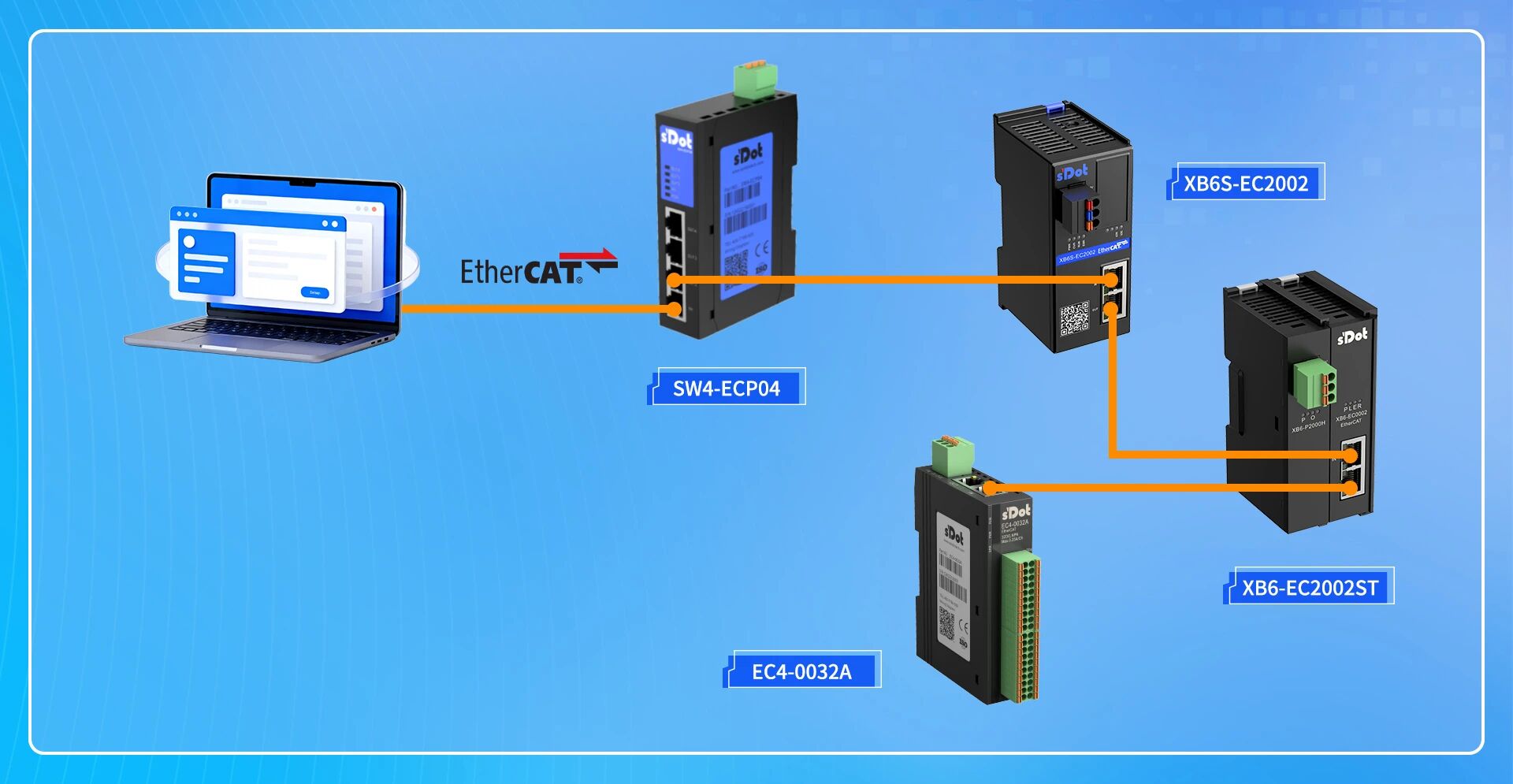
2. Line Topology
Connect the PC to the IN port of the SW4-ECP04, then from one OUT port, daisy-chain in sequence:
● XB6S-EC2002 coupler and its modules
● XB6-EC2002ST coupler and its modules (connect to the previous device’s OUT port)
● EC4-0032A module (connect to the previous device’s OUT port)
II. Issue Phenomenon
What happens without Hot Connect?
Whether in star or line topology, disconnecting any slave causes I/O data of other slaves to stop updating (Process Data exchange stops).
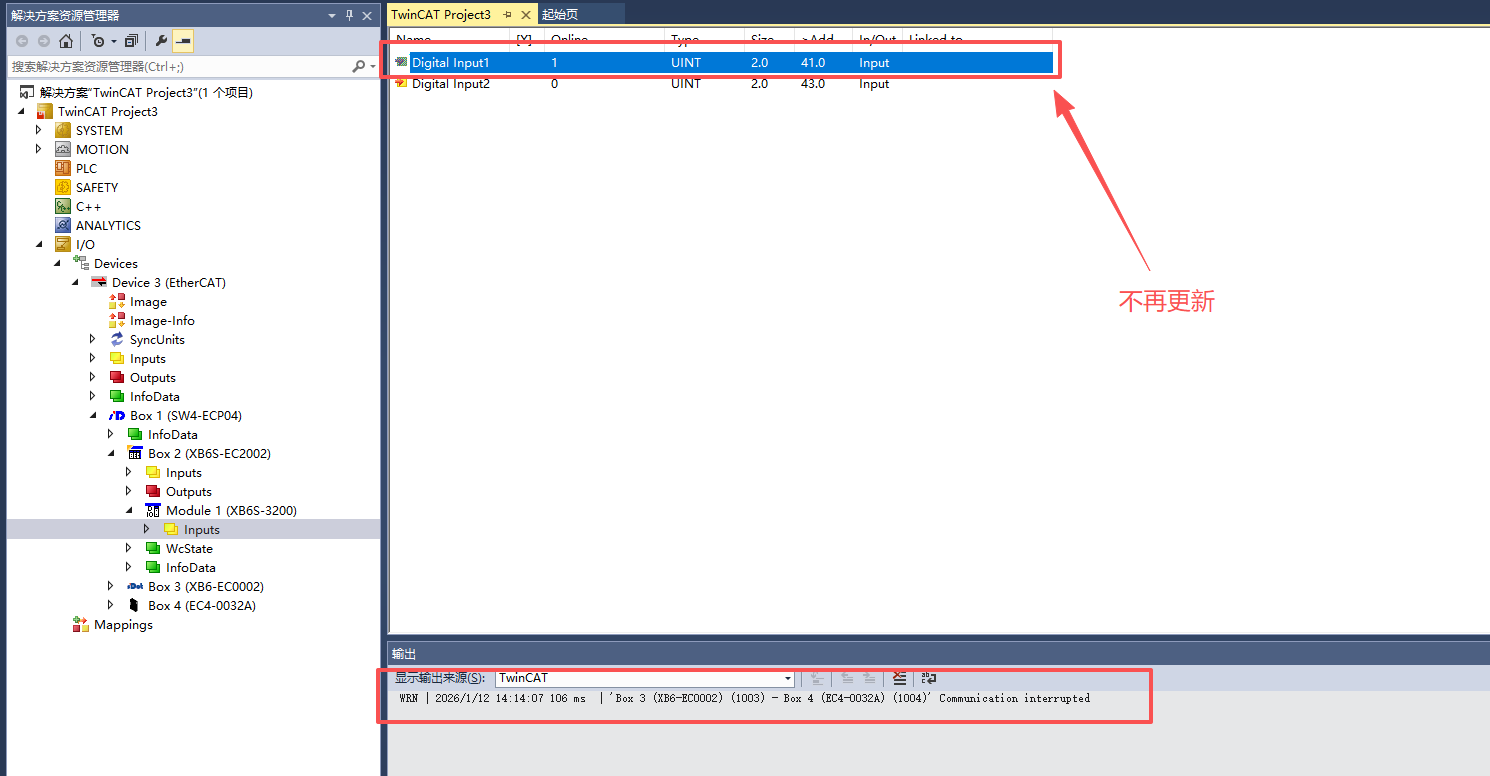
Star topology: After disconnecting the XB6-EC2002ST from the SW4-ECP04, I/O data of the other XB6S-EC2002 also stops updating.
Line topology: After disconnecting the rear XB6-EC2002ST, I/O data of the front XB6S-EC2002 also stops updating.
Why does this happen?
By default, TwinCAT manages the communication link of slaves based on topological order. Once a node in the link is disconnected, the master considers all devices after that node as lost—even in star topology, where they connect to different physical branch ports.
Simply put, under default configuration, slaves are logically “daisy-chained” rather than “independent.”
When Hot Connect is enabled, the master treats specified devices as units that can go online/offline independently, no longer relying on their fixed topological positions for addressing, achieving true hot-swap functionality.
III. Solution: Configure Hot Connect in 3 Steps
The following uses star topology for demonstration. The configuration method for line topology is identical; only the physical wiring differs.
1. Scan Devices
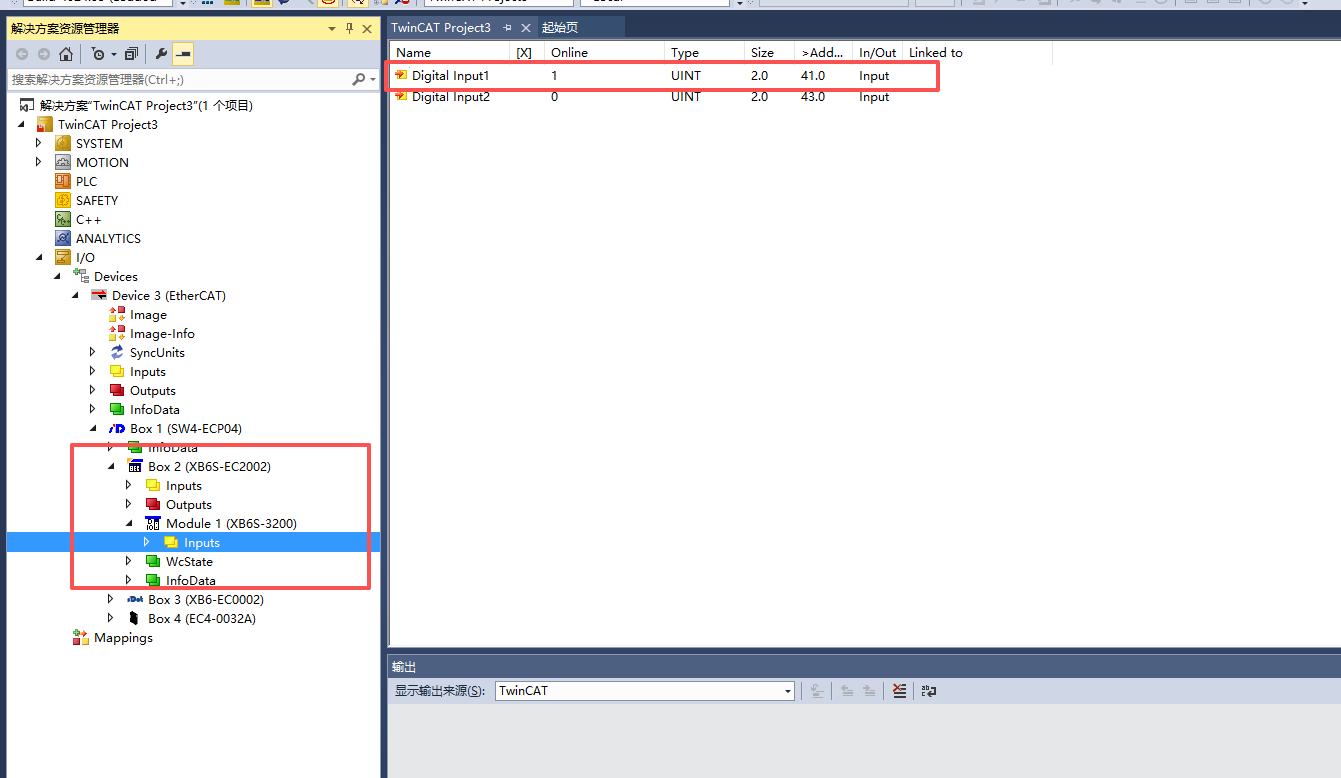
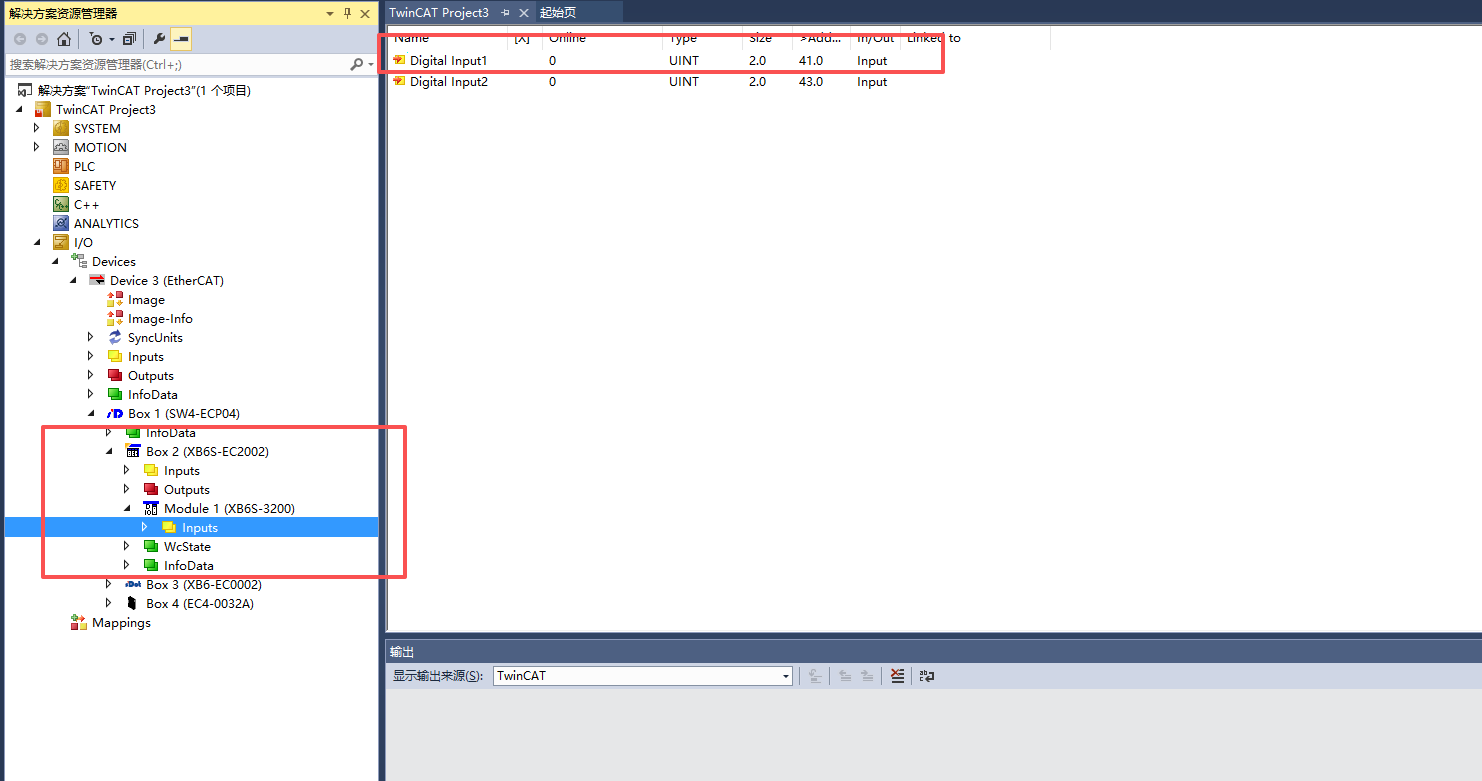
Open TwinCAT, locate I/O → Devices in the left project tree, right-click and select Scan to scan all EtherCAT devices. After scanning, all slaves are correctly recognized.
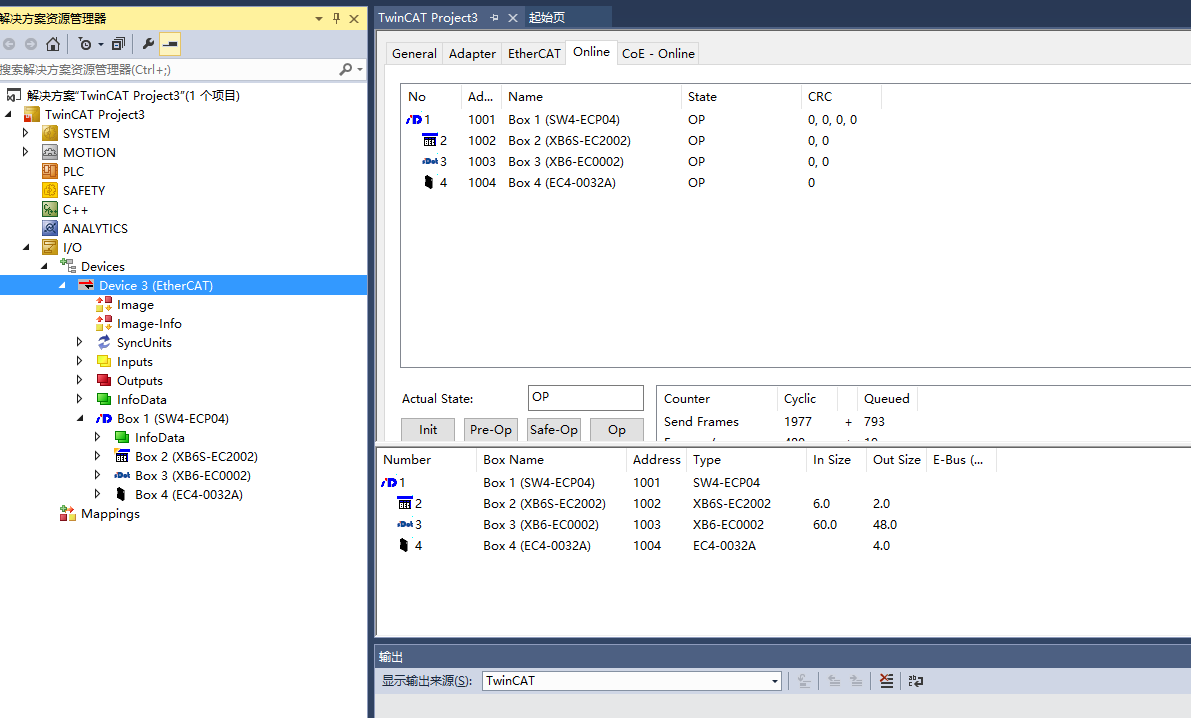
At this point, input signals from the XB6S-EC2002 module can be read normally.
Reproduce the issue
To compare results, first reproduce the issue. Disconnect the XB6-EC2002ST; the input signals of the XB6S-EC2002 stop updating.
2. Add to Hot Connect Group
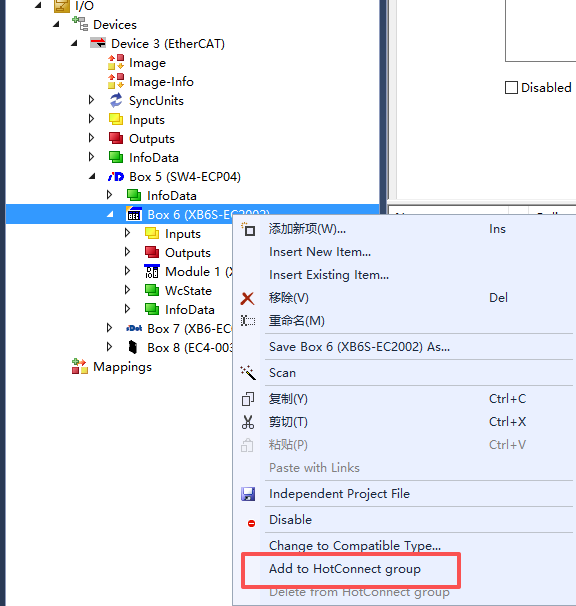
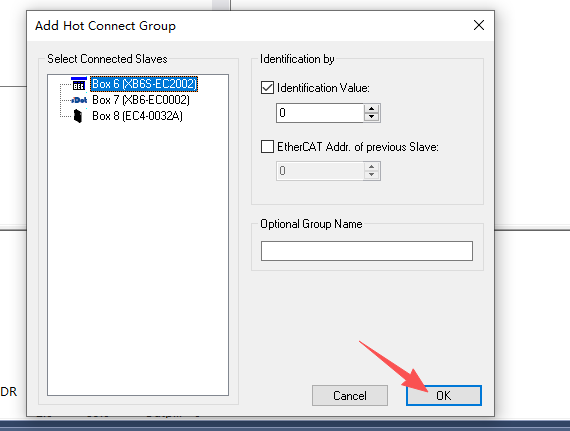
In the TwinCAT project tree, right-click the slave to be protected (XB6-EC2002STin this example) and select Add to Hot Connect Groups.
In the pop-up dialog, check Identification Value (this value is used by the master to identify the device; keep the default) and click OK.
3. Confirm Configuration
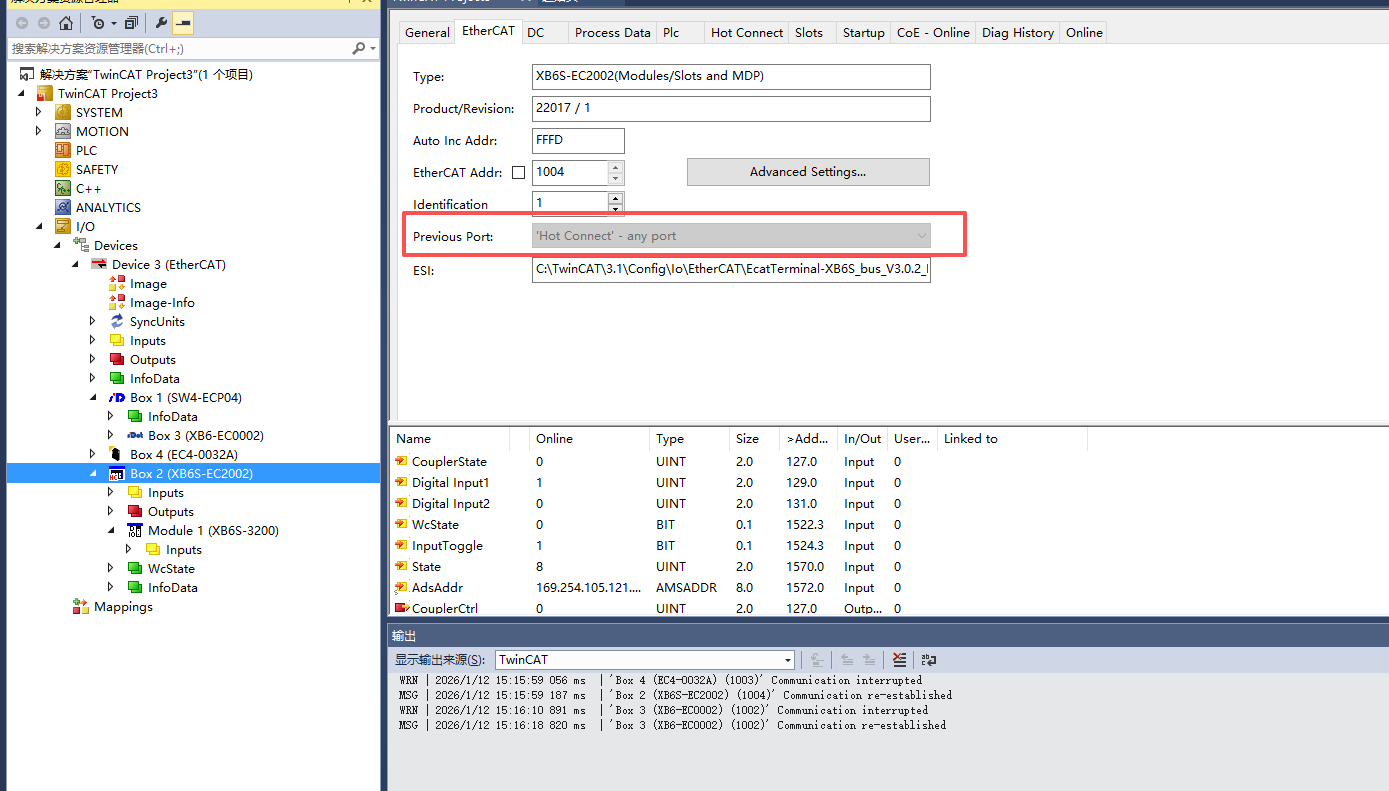
After configuration, the XB6-EC2002ST is moved from the original topology tree to the Hot Connect Group node at the bottom (marked in red).
Check its Previous Port property; the device is no longer bound to a fixed position in the topology. The master can automatically identify and manage it when it goes online or offline.
IV. Verify Hot Connect Effect
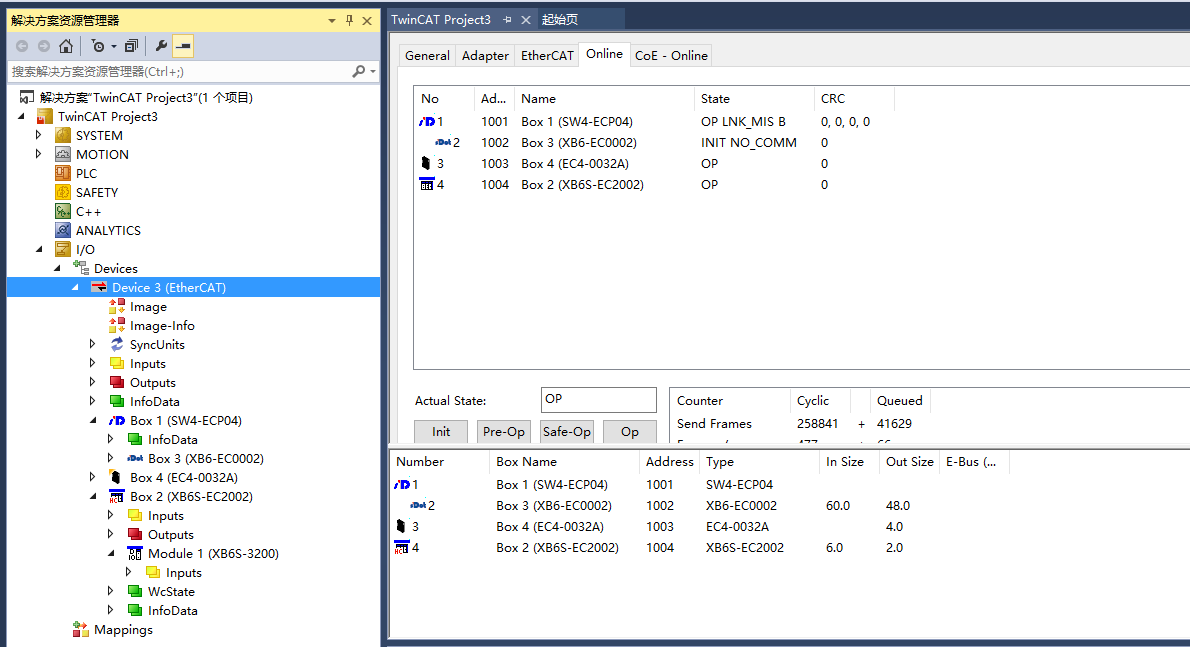
Test in Free Run mode (Free Run allows I/O data exchange without running a PLC program, suitable for testing communication status).
Disconnect the XB6-EC2002ST ; the topology status is shown accordingly.
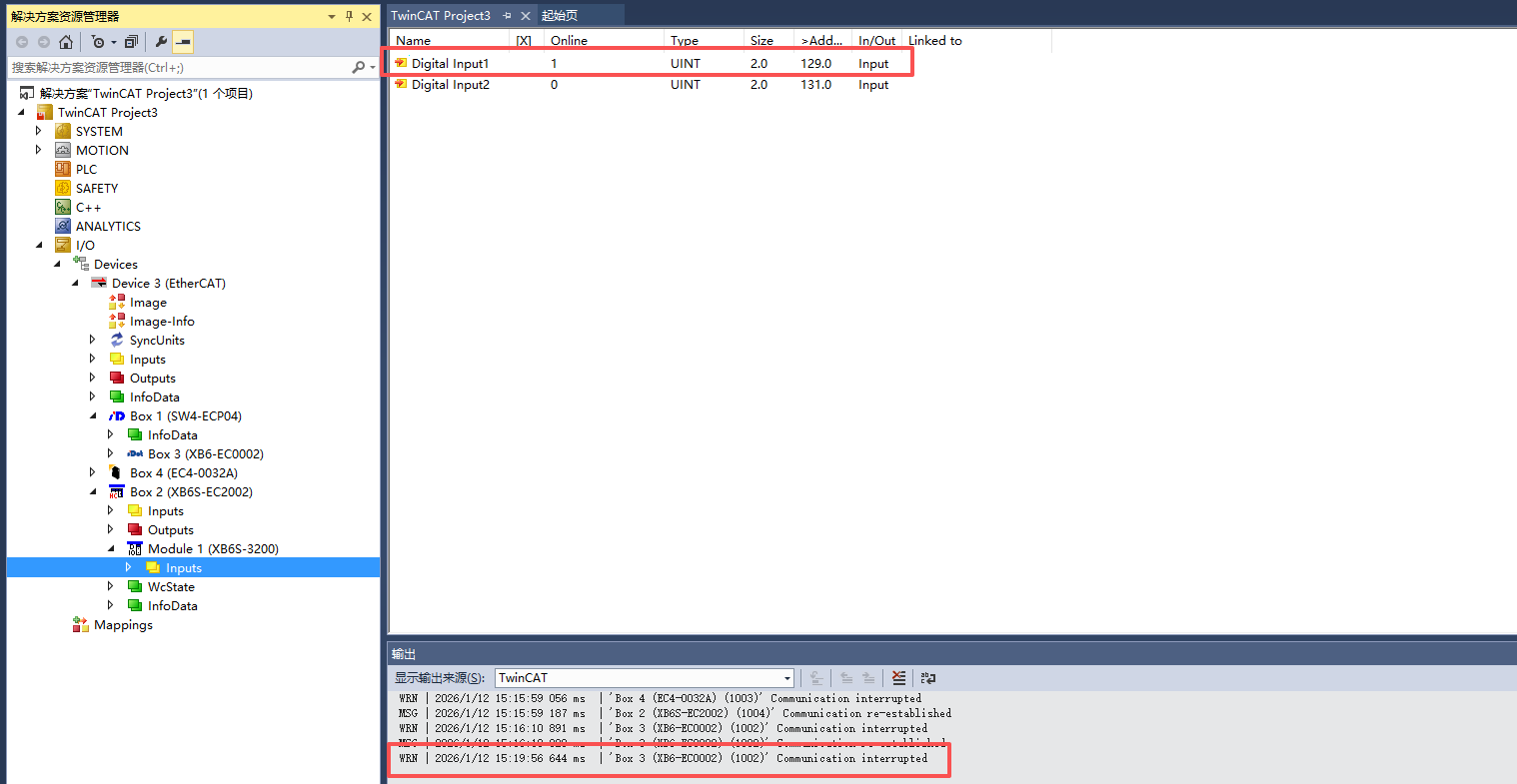
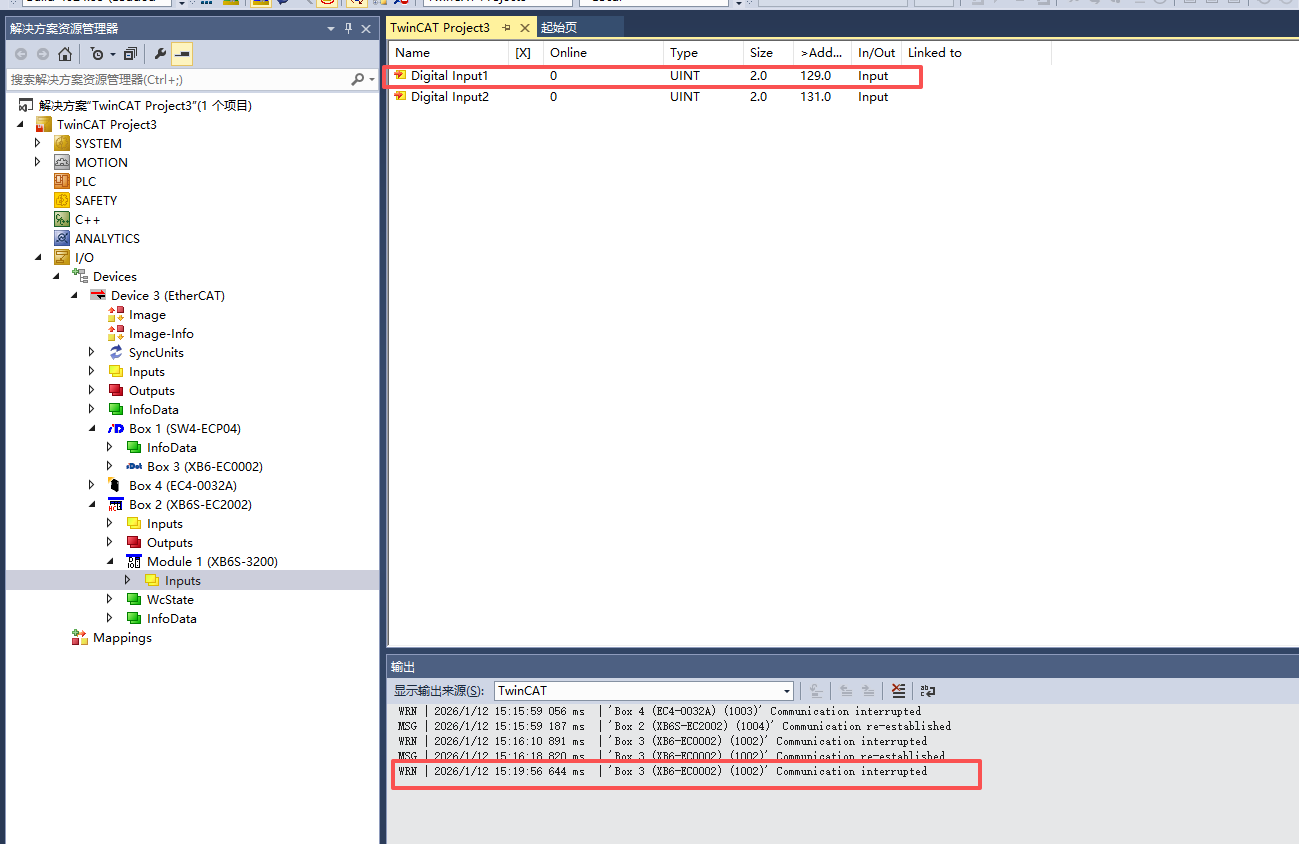
Check the I/O data of the XB6-EC2002ST (in OP state)—all values update normally. The Hot Connect configuration is effective.
V. Additional Notes
1.Line topology also applies: The Hot Connect configuration steps for line topology are identical to star topology. Simply add the slaves that need independent online/offline capability to the Hot Connect Group.
2.Save after configuration: After completing the configuration, it is recommended to click Activate Configuration to activate and save the project, ensuring the configuration persists.
3.If Hot Connect does not take effect, check the following:
● Whether the slave firmware supports Hot Connect
● Whether Identification Value is correctly configured
● Whether the slave has been successfully placed under the Hot Connect Group node
● Whether the physical network connection is stable